
SECTION 01
What Is Claude Code: A Terminal-First AI Coding Agent
Claude Code is a terminal-first AI coding agent from Anthropic. While the CLI is its core, it's now available across multiple interfaces including Web, Desktop, VS Code, JetBrains, Slack, and CI/CD.
It's designed as a tool that handles reading, writing, and executing code, file operations, and git operations in one seamless workflow.
It serves a fundamentally different role from browser-based Claude (the chat AI). The browser version is a conversational tool where you paste code snippets for advice. Claude Code, on the other hand, enters your project directory, understands your file structure, and directly edits your code.
To summarize what it can do, Claude Code autonomously handles tasks like these with a single instruction:
- Code generation, debugging, and refactoring
- Edits spanning multiple files
- PR creation and commit message generation
- Environment setup and package installation
- Root cause analysis and automatic error fixes
That said, there are things it can't do well. Fine-grained pixel adjustments in UI design often require several back-and-forth exchanges, and fully unattended autonomous operation is not yet practical.
The realistic approach is to use it with the assumption that a human is involved for approvals and reviews.
SECTION 02
Why the Terminal Is Central
When people first see Claude Code, many think it looks underwhelming. There's no flashy UI inside an editor, no sidebar suggesting code for you.
But this "terminal-first" design carries significant meaning.
The biggest strength of being a CLI tool is that it can hold your entire project as context. It works with a full understanding of your repository's file structure, dependencies, and configuration files.

Running from the terminal means shell commands, git, and file operations all happen in the same environment. Write code, run tests, hit an error, fix it on the spot, run tests again — this entire cycle flows uninterrupted within a single session.
From my own experience, errors get automatically diagnosed and fixed, so development almost never stalls. The time I used to spend reading error messages, searching for solutions, and applying fixes has been reduced to nearly zero.
Of course, you can now use it as an extension in VS Code or JetBrains, but autonomous execution in the terminal remains Claude Code's origin and greatest strength.
SECTION 03
How It Differs from Cursor and Copilot
For those already using Cursor or GitHub Copilot, how Claude Code differs is probably the most pressing question. The short answer: these are not competitors — they're tools with different strengths.
All of these tools are evolving rapidly, and feature overlap is growing. Still, the differences in design philosophy remain clear.
- Claude Code: Terminal-first. Built around the CLI, it excels at autonomous task execution across an entire repository
- Cursor: Editor-first. Centered on in-editor conversation, its Agent autonomously handles complex multi-file tasks and can execute terminal commands
- GitHub Copilot: Spans IDE, cloud, and CLI. Beyond in-editor completions, its agent mode determines which files to change, suggests code edits and terminal commands, and iterates until the task is complete
There was a time when you could say "only Claude Code can see the whole repo and execute autonomously," but today Cursor and Copilot both have agent capabilities. The difference comes down to where each tool's "home ground" is.
Through trial and error, I've settled on a division of labor: Claude Code for implementation work, Cursor for UI refinement. Large-scale refactoring and multi-file feature additions are faster with Claude Code, while design tweaks and visual verification go more smoothly in Cursor.
Which tool you should choose depends on your development style. If you work primarily in the terminal and want to hand off large tasks wholesale, Claude Code is a good fit. If you prefer refining things interactively inside an editor, Cursor is the better choice.
SECTION 04
Pricing: Three Plans and How to Choose
Claude Code pricing comes in three forms. Each has a different billing model and usage pattern, so it's important to choose based on how frequently you'll use it.
- API pay-as-you-go: Billed per token based on usage. Best for light use or evaluation
- Pro plan ($20/month, or $17/month billed annually): Includes Claude Code access, but with usage limits. Suited for lighter use
- Max plan (5x at $100/month, 20x at $200/month): Significantly higher usage limits than Pro. For those who want to integrate it seriously into their development workflow
The Max plan also has usage limits. It's not completely unlimited — keep that in mind. However, compared to the Pro plan, there's considerably more headroom, and you're unlikely to hit the ceiling during typical daily development.
In my case, I started with API pay-as-you-go, but costs ballooned quickly once I started using it seriously. After switching to the Max plan, I was able to focus on work without worrying about costs.
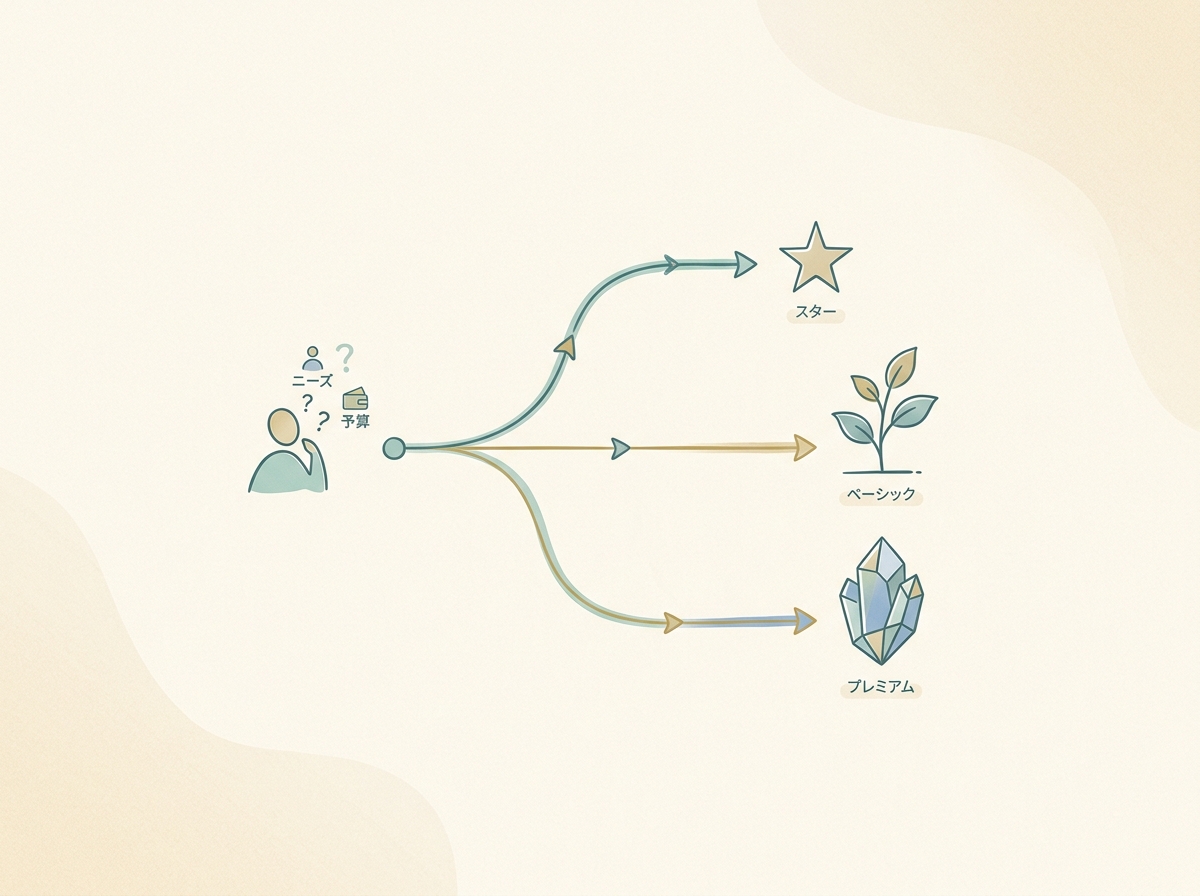
When you think in terms of hourly value, implementations that used to take hours are now dramatically faster, so the monthly fee easily pays for itself. A low-risk approach is to start with the Pro plan, then consider upgrading to Max once you find yourself using it daily.
SECTION 05
Getting Started: From Installation to Your First Command
The official documentation currently recommends installing Claude Code via Native Install, Homebrew, or WinGet. While npm-based installation used to be the standard, native installation is now the recommended path.
Supported platforms are macOS, Linux, and Windows. On Windows, Git for Windows (which includes Git Bash) is required, so make sure to install it beforehand.
The setup process breaks down into three steps:
- Step 1: Install Claude Code using the recommended method (Native Install / Homebrew / WinGet)
- Step 2: Authenticate
- Step 3: Navigate to your project directory and issue your first command
The part most likely to trip you up is choosing an authentication method. Claude Code supports multiple options:
- Claude account authentication: Log in directly with a Pro / Max / Team / Enterprise plan account
- Claude Console (prepaid credits): Set up with
claude auth login --console. Pay-as-you-go via API key - Cloud provider: Also available through Amazon Bedrock or Google Vertex AI
Choose the authentication method that fits your plan and organizational environment.
For your first command, start with something simple like "Explain the structure of this project." This lets you see how Claude Code understands your repository and gives you a feel for how the tool works.
It's better to start with a conversation to get a sense of things than to hand off a large implementation right away.
SECTION 06
Safety: Is Your Code Used for Training?
The biggest concern when using Claude Code for work is probably whether your source code gets used as AI training data. The answer depends on your plan and settings.
When using Claude Code with Free/Pro/Max accounts (consumer plans), if you've opted into model improvement, your chat and coding session content may be used for training. You can opt out from your settings.
With API or commercial plans like Team/Enterprise, your inputs and outputs are not used for model training by default.
For organizations considering adoption, the following options are also available:
- Via Amazon Bedrock: Run Claude Code within your AWS environment — inputs and outputs are not used for model training and are not shared with the model provider
- Via Google Cloud Vertex AI: Use it securely within GCP, though data residency depends on your configuration and region settings
With Bedrock or Vertex AI, you can leverage each cloud's security, governance, and data residency controls. That said, rather than claiming "data absolutely never leaves your environment," I'd recommend reviewing each cloud provider's documentation against your own requirements.
My personal policy is to not use MCP (external service integrations). Since Claude Code operates autonomously, the recovery cost is high if an unexpected external connection occurs.
I operate on the principle that "I personally review every operation that requires approval." So far, this approach has resulted in the fewest incidents.
SECTION 07
Where Claude Code Excels
Claude Code is especially powerful for implementation tasks with a broad scope that would be time-consuming to do manually. Its greatest strength is the ability to batch-process work that would otherwise require opening and editing files one by one.
Specifically, it excels at tasks like these:
- Large-scale refactoring: Renaming, restructuring, replacing deprecated APIs
- Multi-file feature implementation: Adding routes, building everything from the API layer to the UI layer at once
- Root cause analysis and fixes: Tracing a stack trace to its source and automatically completing the fix
- PR creation and environment setup: Commits, branch creation, dependency package configuration
In my case, I run multiple terminals in parallel, issuing new tasks in one while another is generating code. I've also set up remote access so I can send instructions to Claude Code on my Mac from my phone, which means work doesn't stop even when I'm on the move.

Once you use it this extensively, the bottleneck shifts entirely to you. It's no longer about AI processing speed — it's the speed of your reviews, the quality and volume of your instructions, and your judgment during verification. That's where I feel the constraint is now.
SECTION 08
Where Claude Code Falls Short
Even Claude Code, which can seem like it does everything, has tasks where it's more efficient not to delegate. Understanding these boundaries helps you avoid wasted back-and-forth.
First, it struggles with fine-grained UI design adjustments. Instructions like "move the button a bit to the right" or "reduce the padding by a few pixels" tend to require multiple iterations. Tools that let you tweak things while viewing an editor preview are better suited for this.
Second, fully unattended autonomous operation is not realistic at this point. Tasks involving destructive changes — file deletion, database operations — should not proceed without human approval, and Claude Code itself is designed to ask for confirmation.
To summarize what it's not suited for:
- Pixel-level adjustments in UI design
- Business logic decisions that require human judgment
- Fully unattended long-running operations involving destructive actions
- Generating non-text content like images or videos
The key takeaway is to think of Claude Code not as an "all-purpose automation tool" but as an "excellent pair programmer". Give instructions, review results, adjust direction. The people who get the most out of Claude Code are those who can maintain this feedback loop.
SECTION 09
What Kind of Developer Should Choose Claude Code
Claude Code is not a tool that fits every developer. It's important to evaluate whether it matches your development style and the challenges you face.
It's an especially good fit for these types:
- Developers who work primarily in the terminal: If you're comfortable with the command line, the onboarding barrier is low
- Solo developers or small teams wearing multiple hats: The leverage is significant when you're handling everything from implementation to deployment yourself
- Developers working with large codebases: An agent that understands the entire repository before acting provides outsized benefits
Conversely, if you don't want to leave your editor's GUI or feel that code completion is enough, there's no need to force Claude Code into your workflow. If you're happy with Cursor or Copilot, there's no reason to disrupt what's working.
Having built many products over the years, I feel that Claude Code is the first tool that shifted my bottleneck to "myself." It's no longer about how fast I can write code — what determines productivity now is the quality of what I decide to build and how well I review.
Start with the Pro plan on a small task, and if you feel it fits your workflow, commit to integrating it fully. I hope this article has given you enough information to make that call.