
SECTION 01
5 Differences I Discovered After Migrating from VSCode
Cursor is a fork of VSCode, so the look and feel are nearly identical. The difference lies in how you interact with AI — and this is where the design philosophy fundamentally diverges.
The biggest difference was that how you pass context is completely different. Back when I was pasting code into ChatGPT and going back and forth, I had to manually copy and paste context every time. With Cursor, the Agent automatically gathers the necessary context, and you can also add context manually when needed, so this overhead drops to nearly zero.
The next thing I noticed was being able to accept or modify AI suggestions on the spot. With chat tools, you end up copying code, switching back to the editor, pasting it in — a constant back-and-forth. In Cursor, suggestions appear right in the editor and you can apply them with a single click. Your flow never breaks.
The remaining three differences are all things that matter in day-to-day work.
- Write your project rules in a Rules file, and you'll never have to give the same correction twice
- Use Plan mode to have the AI plan before executing, and mistakes drop dramatically even for complex changes
- Diff review and rollback happen entirely within the editor, so you can safely revert if something goes wrong
These five points aren't about "more convenient features" — they're about fundamentally changing your development workflow.
Honestly, since I started using Cursor and Claude Code, I've drastically reduced not just writing code, but even looking at it. I communicate my intent to the AI, have it plan, execute, and then I just review the diffs. I used to write code with my own hands, but that already feels like a distant memory.
I can't go back to VSCode. Even just the way you pass context — I genuinely can't remember how I used to write code back when I was developing without AI.
SECTION 02
Who Should Stay on VSCode and Who Should Switch to Cursor
There are patterns where Copilot's completions are sufficient. If you mostly write boilerplate code and rarely need to give long instructions to AI, you'll have no trouble sticking with VSCode + Copilot. When comparing completion accuracy alone, the difference is hard to notice.
On the other hand, Cursor shines when you're "thinking while coding". Refactoring that involves design decisions, changes spanning multiple files, fixing things while reading through existing code. For this kind of work, whether you can give the AI your full project context makes all the difference in the outcome.
Many people worry about migration costs, but your settings, extensions, and keybindings carry over almost entirely. Since Cursor is VSCode-based, migration is as simple as importing your existing environment. The actual switching cost is remarkably low.

In my case, after migrating from pasting code into ChatGPT to using Cursor, my development speed noticeably changed. I also tried Cline (an AI agent extension), which made environment setup and new app scaffolding even faster. That said, there are situations where API costs add up, so it's not a silver bullet.
Here's a summary of the decision criteria.
- Mostly completion-based work → VSCode + Copilot is enough
- Lots of design decisions and multi-file changes → Switching to Cursor is worth it
- Worried about migration cost → Settings carry over almost entirely, so it's low risk
SECTION 03
When the Free Plan Hits Its Limits and When to Upgrade
Cursor's free tier (Hobby Free) has usage limits on Agent requests and tab completions. Basic AI completions and chat work fine, but once you start using it seriously for development, you'll burn through the quota in no time.
If you're just casually trying it out, the free tier holds up. But when you actually dig into it for work or side projects, hitting the daily limit in half a day to a full day is completely normal. Especially if you have longer chat conversations or use Plan mode to draft strategies — the quota vanishes instantly.
It's honestly hard to judge Cursor's true capabilities on the free plan. When you're constantly watching your remaining quota, you can't experience the real workflow. If you want to see what Cursor can actually do, upgrading early is more efficient in the long run.
Here are some concrete guidelines for when to upgrade.
- If you burn through the free quota in 1–2 days, upgrade without hesitation
- If you want to use Plan mode and high-performance models regularly, you'll need the paid individual plan
- For team adoption, consider the Team or Enterprise plan with its management features and security settings
Here's a personal lesson learned: Opus 4.5 (Anthropic's high-performance model) was so good that I burned through my entire quota in half a month, even on a higher-tier plan. The bill ended up being substantial, and I learned the hard way that running everything at max specs gets expensive fast.
After that experience, I became much more intentional about model selection. If I can give solid instructions, I use Composer 2 (Cursor's proprietary model). For moderately difficult tasks, Codex. For tasks that need deeper reasoning, Opus. Without this kind of differentiation, you'll hit the ceiling on any plan.
SECTION 04
Settings and Practices That Pay Off Days Later, Not on Day One
Right after installing Cursor, it feels perfectly fine to just use it as a regular editor. But the real difference shows up a few days later, when you realize you've been giving the same correction instructions over and over.
That's where Rules files come in. In the current version of Cursor, you place project rules in the .cursor/rules directory. It also supports scoping with Project Rules, Team Rules, and User Rules, as well as rule definitions via AGENTS.md.
I started out giving instructions from scratch each time, but once I realized I was repeating the same corrections, I consolidated them into rules files.
Here are the kinds of things that are effective to put in Rules files.
- Coding conventions (naming rules, file structure guidelines)
- Idioms and patterns for your framework
- Things you don't want the AI to do (e.g., don't use a specific library)
- Project-specific terminology and abbreviation definitions
Another game-changer is when Plan mode becomes part of your daily routine. For complex features, instead of jumping straight into code generation, you have the AI draft a plan first and then execute step by step. I arrived at this approach after several failures where going in without a plan led to broken code.

Also, using Reference > Open Editor with multiple tabs open is quietly powerful. It proposes code that takes related files into account, including suggestions for creating entirely new files. This is where you really feel that AI output quality is determined by the quantity and quality of information you provide.
SECTION 05
How You Pass Context Determines Your Speed
Whether AI programming makes you faster depends more on how you pass context than on model performance. No matter how smart the model is, if it doesn't have enough information, it'll give you irrelevant answers.
A common failure pattern is handing over just the error log and asking for a fix. Logs alone don't provide enough information, and the AI ends up guessing the wrong root cause. If you also include the steps you took and your debugging history, the quality of the answer changes completely.
Cursor makes this context sharing happen naturally.
- The Agent automatically gathers necessary context, and you can also add more manually
- Rules files let you continuously pass project rules
- You can directly reference files in chat to add context
This is the biggest difference from ChatGPT or Copilot. You don't get faster because you switched tools — you get faster because the way you pass context changes. Whether you have this awareness or not completely changes the results, even when using the same Cursor.
Conversely, if you use it without being conscious of context, Cursor won't make you faster either. I sometimes hear people say "I switched to an AI editor but it's not as fast as I expected," and in most cases, they're simply not providing enough information.
SECTION 06
Security and Code Handling Concerns for Business Use
When you use AI in Cursor, portions of your code are sent to external AI services. This is unavoidable due to how completions and chat work, and for business use, you need to properly understand this point.
Cursor offers a Privacy Mode. When this setting is enabled, your submitted code is not stored by model providers and is not used for training. However, code data is still sent to Cursor's servers to power the AI features. If you're using it for work, confirming this setting should be your first step.
Here are the key points to verify when adopting Cursor for a team.
- Is Privacy Mode enabled for all team members?
- Does your internal security policy conflict with sending code to AI services?
- Have you established operational rules for using it with highly confidential repositories?
Compared to Copilot, both tools send code context to the cloud. However, the policies around storage, training usage, and management differ depending on the plan and settings. For example, even with Copilot, certain plans may allow code to be used for training depending on the configuration. Don't lump them together as "they're the same" — verify the specific plan and settings your organization is using.
That said, if settings are misconfigured, there's a risk of unintentionally sending confidential information. It's especially important to build a habit of verifying that settings haven't reverted to defaults when new members join or when switching between projects.
SECTION 07
Reducing Mistakes in Complex Changes with Plan Mode
Cursor's Plan mode is a feature that has the AI create a plan before implementation. It's especially powerful for changes spanning multiple files or refactoring where the impact is hard to predict.
The usage is simple: pass what you want to do as bullet points and say "plan this first." It returns a step-by-step work plan, which you review before moving to execution. Compared to generating code directly, the risk of the AI going off in an unintended direction drops significantly.
In my experience, making complex changes without Plan mode resulted in broken code on multiple occasions. Especially when consistency with existing code is required, the AI sometimes proposes localized changes without grasping the full picture.
Here are some tips for using Plan mode effectively.
- Start by having a high-performance model (like Opus) create the plan
- Review each step as a human before moving to execution
- If the direction changes midway, update the plan first before continuing
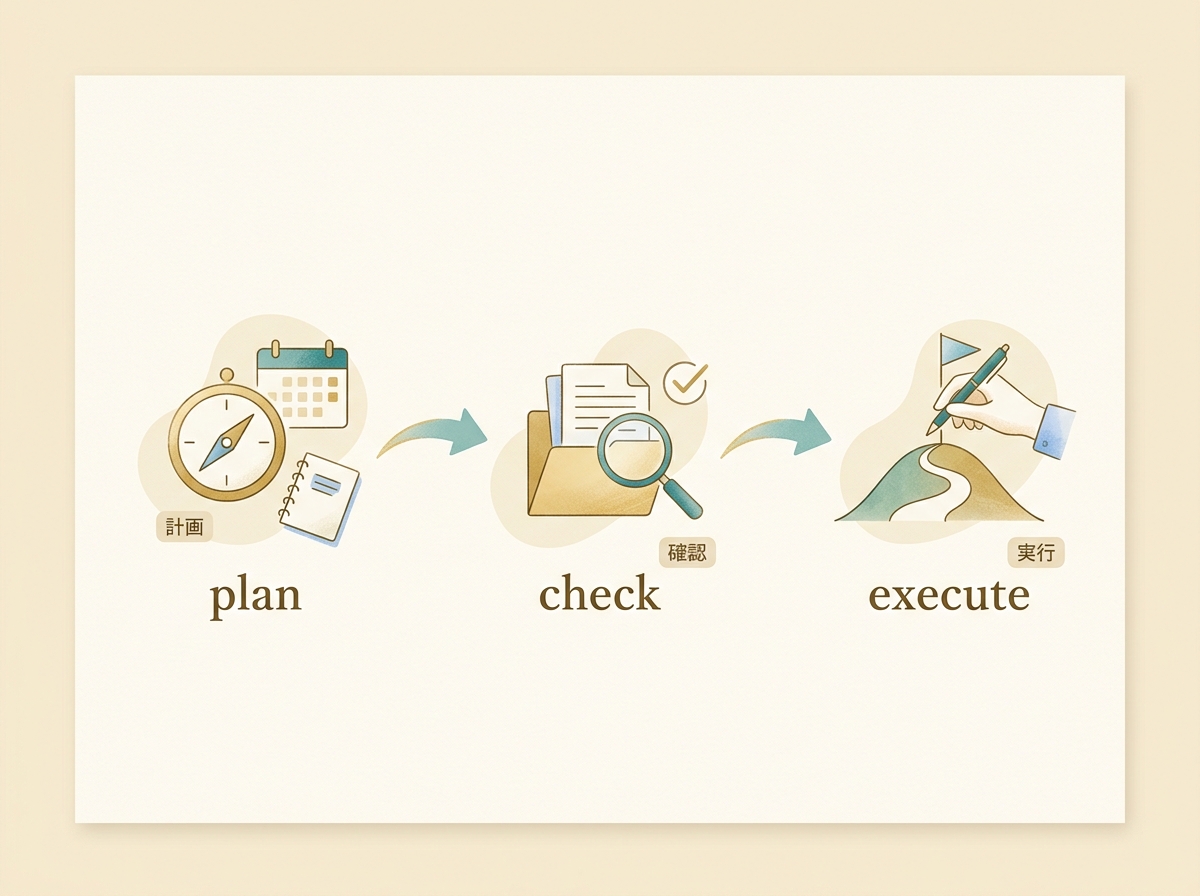
The peace of mind of being able to verify step by step is one of Cursor's biggest strengths. Compared to tools like Claude Code that execute everything at once, Cursor makes it easier to course-correct midway, which makes it well-suited for work where you want to proceed carefully.
SECTION 08
How to Use Cursor, Claude Code, and Copilot Together
AI code tools keep multiplying, but trying to do everything with a single tool ends up being slower — that's my current conclusion. Each tool has different strengths, so switching based on the task at hand is the practical approach.
Cursor is best for work where you want to verify as you go. You can review diffs on the spot and decide whether to accept or modify, making it a great fit for careful changes and refactoring. When starting with research or planning, I also find Cursor's Plan mode the most convenient.
Claude Code originally had a strong terminal (CLI) focus, but it has since evolved to work with IDEs, desktop apps, and browsers as well. It seems to have a deeper understanding of codebases, but rolling back when something fails is its weakness. Without committing via git after each task, recovery gets painful.
Whether it's Cursor or Claude Code, as you use them more, the occasions where you write code yourself keep shrinking. You communicate intent, review the plan, and check the diffs. What you're doing is closer to "directing" than "coding." Once you get used to this feeling, you truly can't go back to writing code line by line in plain VSCode.
Here's how I currently split my usage.
- Research, planning, and careful changes → Cursor
- Delegating larger tasks wholesale → Codex
- Running multiple tasks in parallel → Claude Code (though Cursor is closing the gap with Cloud Agents and Parallel Agents)
- Routine completion-heavy work → Copilot
What matters is not which tool is the best, but finding the combination that fits your work patterns. Rather than spending too much time on tool selection, it's more efficient to start by going deep with Cursor and then supplementing with other tools where needed.
SECTION 09
The Migration Process and What to Do First
Migrating from VSCode to Cursor is essentially done by importing your settings during installation. Extensions, keybindings, themes, snippets — all your VSCode assets carry over as-is.
The first thing to do after installation is confirm Privacy Mode. If you're using it for work, turn this setting on from day one. It's better to set it up on the first day than to panic about it later.
Next, create your Rules files. In the current version of Cursor, placing rules in the .cursor/rules directory is the standard approach. You don't need to write perfect rules from the start.
- Start by writing just the basics about your language and framework
- When you notice you're making the same correction every time, add it to the rules
- Decide whether to use Project Rules or User Rules based on whether the team should share them
Model selection is also important. The default model is fine to start with, but as you get more comfortable, switching models based on task difficulty helps balance cost and quality.
Finally, I recommend not trying to "go fast" during the first week. Start by doing your regular work in Cursor and getting comfortable with AI interactions. The art of passing context and knowing when to use Plan mode is something you develop through hands-on use.