
SECTION 01
The Bottom Line: There Is a Student Benefit — With Eligibility Conditions. Three Ways to Use Cursor Affordably Even If You Don't Qualify
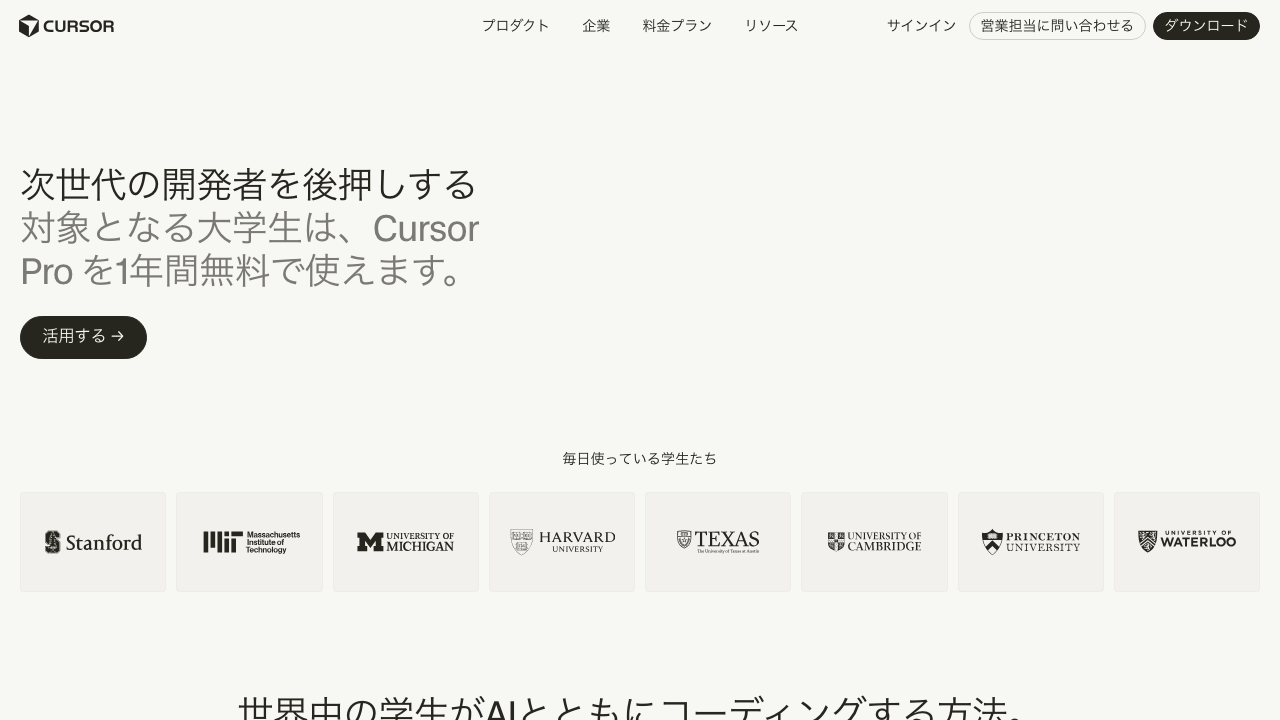
To clarify upfront, Cursor does offer a student benefit with specific eligibility conditions. The official student page states that eligible university students can use Cursor Pro free for one year.
However, according to the official FAQ, your Cursor account email must match a valid .edu university email address. Students at Japanese universities using .ac.jp domains, vocational school students, or high school students may not qualify. Check the official student page first to confirm your eligibility.
Note that Cursor is not included in the GitHub Student Developer Pack. That is a separate GitHub program, unrelated to Cursor's own student benefit.
Even if you don't qualify for the student benefit, there are 3 realistic routes to use Cursor. You can choose based on your budget.
- Free plan (Hobby plan): Limited, but sufficient for coursework-level tasks
- BYOK (Bring Your Own Key): Use your own API key and pay only for what you use
- Pro plan (monthly subscription): The option for serious, full-featured usage
Which route fits you depends on what you're using it for. Whether you just want to get through class assignments or you need polished output for hackathons and portfolios will determine the right plan. Let's walk through each one.
SECTION 02
How Far Can the Free Plan Take You — The Reality for Coursework and Side Projects
Cursor's free plan (Hobby plan) is available to anyone who signs up. No student verification is needed. You get access to AI completions and chat features up to a certain number of requests, which is enough for light coursework.
That said, the free tier has a cap on the number of requests. Choosing high-performance models burns through the quota quickly. Writing a few files for a class assignment is fine, but if you're coding every day on a personal project, you may hit the limit by mid-month.
The key insight here is that designing your workflow around lighter models is the real way to save. For coursework and light personal projects, you don't need the most powerful model. Use a fast, reasonably capable model for everyday tasks, and only step up to a stronger one when needed.
<!-- Figure: Simple illustration of the boundary between free and paid plans -->
If a task is taking too long or the AI is changing things it shouldn't, that's a signal to rephrase your prompt or switch models. Using the free tier wisely requires being intentional about both model selection and how you write your instructions.
SECTION 03
How to Keep Costs Down with BYOK (Bring Your Own Key)
Cursor supports a feature called BYOK (Bring Your Own Key). By entering your own API key into Cursor, you bypass the free plan's request limits and pay only for what you use on a pay-as-you-go basis.
Setup is straightforward — just enter your API key in Cursor's settings. Create an account with an API provider, generate a key, and paste it in. Even students will find the process simple.
As for cost, BYOK expenses vary significantly depending on the model, provider, and usage volume. Light usage with simple queries can be quite cheap, but heavy use of powerful models drives costs up quickly. The best approach is to start small and see what your actual spending looks like.
The biggest advantage of BYOK is that you get to use Cursor's integrated environment without paying for the Pro plan. It also works as an extension once you've exhausted your free tier quota. For students on a tight budget, it's a practical middle ground before committing to Pro.
SECTION 04
GitHub Copilot Free vs. Cursor — Which Should Students Choose?
For students, the biggest point of comparison is GitHub Copilot (a tool that suggests code completions in real time). If you pass GitHub Education's student verification, you can use Copilot for free in VS Code. On cost alone, Copilot has the edge.
As of April 2026, Copilot also offers Chat, inline chat, Copilot Edits, and Agent mode within VS Code. It supports multi-file editing and applying changes directly in the editor, so the old gap of "copy-paste required" no longer exists.
So where does the real difference between Cursor and Copilot show up? Here are the main points.
- Student benefit eligibility: Copilot is available through GitHub Education's student verification. Cursor's student benefit requires .edu email verification, limiting eligibility
- Pricing structure: Copilot is free for students. If you don't qualify for Cursor's student benefit, your options are the Hobby plan (free with limits), BYOK, or the Pro plan
- Project Rules & AGENTS.md: Cursor lets you pass project-specific rules to the AI via .cursor/rules (Project Rules) and AGENTS.md. Copilot has similar features, but Cursor offers more flexibility in rule management
- Marketplace (plugins): Cursor supports plugins that add technology-specific skills, rules, and MCP servers. This mechanism doesn't exist in Copilot
Here's how to frame your decision.
- If you have a .edu email and qualify for Cursor's student benefit, using the free year of Cursor Pro is the rational choice
- If you don't qualify for the student benefit, start with Copilot. It's free and only requires student verification
- If you want the benefits of Project Rules and the Marketplace, it's worth trying Cursor's free plan or BYOK
SECTION 05
Context Delivery Matters More Than Model Choice
When it comes to getting results with AI programming, how you pass context matters more than the model's raw capability — that's the honest takeaway. Even the smartest model will give irrelevant answers if it doesn't understand your project's background and intent.
What sets Cursor apart from other environments is that context-sharing mechanisms are built into the editor. You can pass the contents of all open tabs to the AI at once, and the AI automatically references project-specific rules you've set up.
The current recommendation is .cursor/rules (Project Rules) or AGENTS.md. Write your project's coding conventions, architecture decisions, and library constraints into these files, and the AI references them automatically. Note that .cursorrules still works for legacy compatibility, but the official recommendation for new setups is Project Rules.
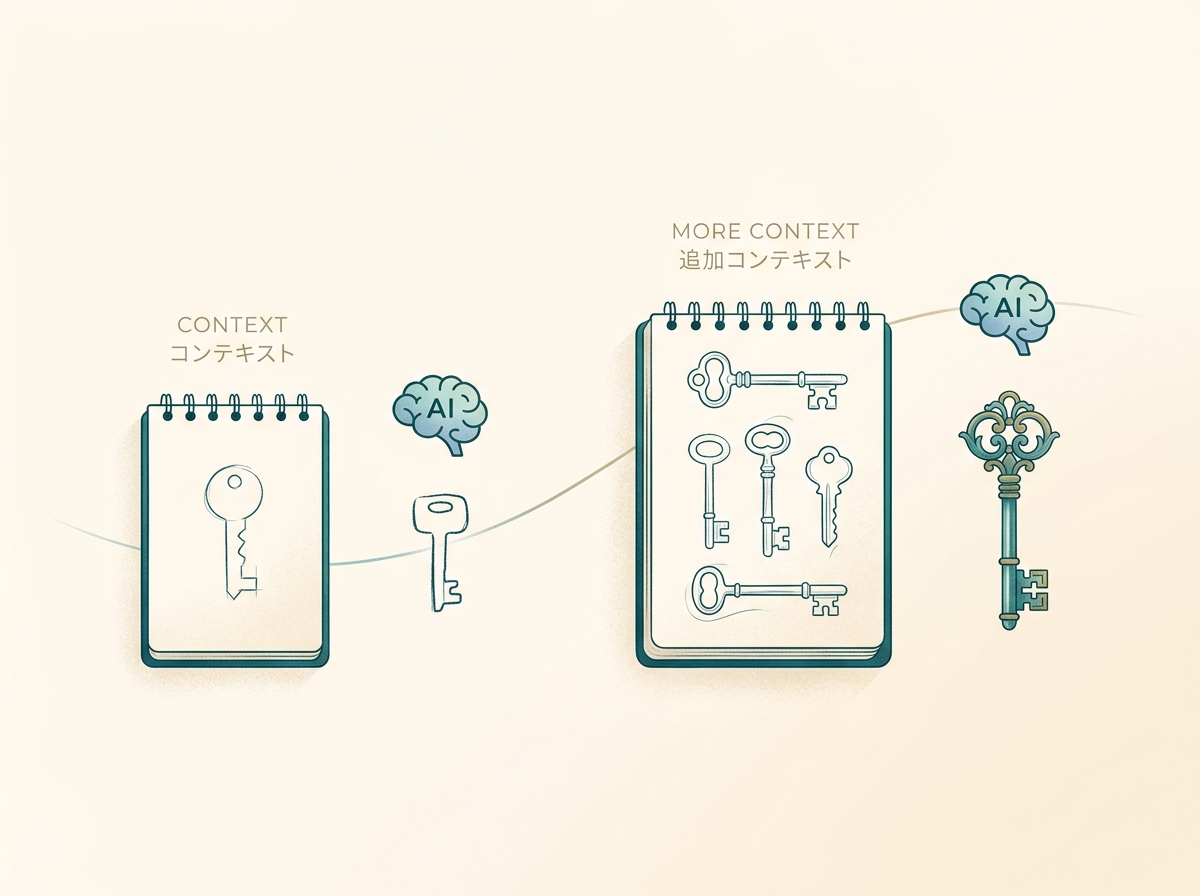
Without these mechanisms, you'd need to manually craft and pass context every time — explaining your project structure and rules from scratch. Even for errors, simply pasting a log isn't enough; including the steps to reproduce and your hypothesis about the cause significantly improves response quality.
The first skill students should develop isn't using expensive models — it's refining the granularity of their instructions and how they convey intent. Master this, and you can get strong results even with free tiers and lighter models. There's more room for improvement in how you deliver context than in how much you spend on models.
SECTION 06
Will AI Hurt Your Learning? Use It as a Reviewer, Not a Ghost Writer
"If I let AI write my code, won't I fail to develop real skills?" That's a completely valid concern. Relying solely on code generation will definitely reduce your learning. Getting working code without understanding what's happening won't help you when you need to adapt or troubleshoot.
If you want AI to enhance your learning, use it as a code reviewer rather than a code writer. Show it code you wrote yourself and ask "Are there any problems with this approach?" or "Is there a better way?" That kind of usage deepens understanding.
Here are some specific, effective ways to use it.
- Ask for error explanations. Instead of "fix this," ask "why is this error occurring?"
- Request reviews of your own code. Get improvement suggestions, then make the fixes yourself
- Consult on design decisions. Have the AI present multiple implementation approaches, then choose one yourself
What really matters as things get faster is your ability to read code and give clear instructions. The faster the tools get, the more the skill gap between users becomes apparent. You may not need to write code anymore, but the ability to design what to build and how to make it work is more important than ever.
If you're using Cursor, don't just let it write code and call it done — focus on sharpening the granularity of your instructions and how you communicate intent. This is a skill that will give you a clear edge in job hunting and team development.
SECTION 07
When Should Students Pay for Cursor?
So when is it worth paying for the Pro plan as a student? First, as a baseline: if you qualify for the student benefit with a .edu email, you get the Pro plan free for a year. Start by checking the official student page.
If you don't qualify for the student benefit and are considering paying out of pocket, the value of paying emerges when the quality and speed of your output are on the line. Specifically: hackathons, job-hunting portfolios, and team development projects.
As for cost expectations, it varies greatly depending on the models you use and your usage patterns. Cursor's official Pricing Docs indicate that for daily Agent users, the total usage cost is roughly $60–100 per month. Lighter usage will cost less, but heavy use can push it higher — so it's safer not to assume a fixed amount.
Before considering a paid plan, there are steps you should take first.
- First, check whether you qualify for the student benefit. A .edu email may get you Pro free for a year
- Max out the free plan first. Experience firsthand whether the quota is enough
- Try BYOK with pay-as-you-go pricing. Get a feel for what your usage actually costs
- Only then, if it's still not enough, consider the Pro plan
One often-overlooked option is asking your internship employer, seminar, or research lab for financial support. Many companies and labs cover development tool expenses. It's worth asking before paying the full cost yourself.
SECTION 08
Why Cursor Marketplace Is Especially Powerful for Students
Cursor has an extension system called the Marketplace. By installing plugins, technology-specific skills, rules, and MCP servers are added to Cursor. For example, a Stripe (online payment service) plugin includes rules for Stripe-specific workflows and best practices.
This is especially valuable for students because even with limited knowledge, plugins let you work efficiently within the scope of the rules and skills they provide.
When integrating a payment flow into a personal project for the first time, what used to require reading through official documentation can now be streamlined with a Marketplace plugin. This applies beyond payments to scenarios like:
- Setting up and building with a framework you're using for the first time
- Choosing patterns for database design
- Applying best practices for authentication and security

However, the scope and accuracy of each plugin varies. Don't blindly accept plugin suggestions — always cross-reference with official documentation. Taking the extra step to ask the AI "why this approach?" makes a real difference in learning quality.
SECTION 09
Concrete Steps for Students to Get Started Today
Based on everything covered so far, here are the concrete steps for students to start using Cursor. No complicated setup required.
Here's what to do first.
- Download and install the app from Cursor's official website
- If you have a .edu email, check the student benefit page to see if you qualify. If eligible, you get Cursor Pro free for one year
- If you don't qualify, sign up for the free plan (Hobby plan). No student verification needed
- You can import VS Code extensions and settings, so if you have an existing setup, migration is seamless
Once you're up and running, start by selecting a lighter model and using it for everyday tasks. Try small tasks like debugging assignment errors or getting code reviews — this will help you gauge how quickly you burn through the free quota.
When the free quota runs out, the next step is setting up BYOK with your own API key to switch to pay-as-you-go. Once you understand what your usage actually costs per month, you'll be in a much better position to decide whether to move to the Pro plan.
SECTION 10
Decision Flow Summary for Students
Finally, here's a summary of the decision flow for how students should use Cursor. The best option changes depending on your situation, so map it to your own use case.
Here are the key decision points.
- You have a .edu email and qualify for Cursor's student benefit → Use the free year of Cursor Pro. This is the best deal available
- You don't qualify for the student benefit and want to get through coursework efficiently → GitHub Copilot (free for students) is sufficient to start. Switch to Cursor's free plan if you're not satisfied
- You want to do serious personal development → Start with Cursor's free plan or BYOK. You'll quickly appreciate the convenience of Project Rules and context sharing
- You want to deliver results at hackathons or in a job-hunting portfolio → The Pro plan is worth considering. It makes a difference when both speed and quality are on the line
Cursor offers a student benefit through .edu email verification, granting a free year of Pro for those who qualify. Even if you don't qualify, combining the free plan with BYOK lets students get meaningful value from AI-assisted coding on a student budget.
What matters isn't spending money on tools — it's refining how you deliver context and craft your instructions. In an era where AI writes code fast, the ability to read, design, and communicate intent is what sets you apart. Cursor can serve as a training partner for building those skills. Start by checking whether you qualify for the student benefit.