SECTION 01
Key Insight: UI Language and AI Response Language Are Separate
Most people who struggle with Cursor's Japanese setup are confusing two different things: the UI display language and the AI response language. These run on completely separate mechanisms, and each requires its own configuration.
For the UI, you install the Japanese Language Pack extension — the same one used in VS Code. For AI responses, you add a single line to your .cursorrules file. Both are simple tasks, but doing only one and thinking you're done is the most common mistake.
Here's another important point: you can type instructions to Cursor's AI in Japanese from the start without any configuration. There's no special setting needed to communicate with the AI in your preferred language.
In short, a minimal setup is all you need for a solid Japanese environment. From experience, the fewer settings you add, the fewer things break. This article covers exactly what's necessary — nothing more.
SECTION 02
3 Reasons Cursor's Japanese Setup Fails
Failed Japanese localization boils down to three common patterns. None of them involve difficult configuration — they're all cases of "one missing step."
Pitfall 1: Installing the Language Pack without restarting. Simply installing the extension doesn't switch the language. You need to fully restart the editor and explicitly select the language through the Command Palette.
Pitfall 2: Localizing the UI but forgetting about AI response language. The menus are in Japanese, so you ask the AI a question — and it responds in English. UI language and AI output language are not linked, so they need separate attention.
Pitfall 3: Not noticing settings reset after an update. Cursor updates frequently. Language preferences can reset during updates, and suddenly your menus are back in English with no warning.
Understanding these three pitfalls covers nearly every localization issue you'll encounter. The following sections walk through each fix step by step.
SECTION 03
How to Localize Cursor's UI (Japanese Language Pack)
Since Cursor is built on VS Code, UI localization follows nearly the same process as VS Code. The extension you need is "Japanese Language Pack for Visual Studio Code" by Microsoft.
Here's the step-by-step process:
- Click the Extensions icon in the sidebar and search for "Japanese"
- Find "Japanese Language Pack for Visual Studio Code" and click Install
- After installation, click "Change Language and Restart" in the notification that appears
If you missed the notification, no problem. Open the Command Palette (Ctrl+Shift+P or Cmd+Shift+P), type "Configure Display Language," and select "ja" from the list. The UI switches to Japanese after restarting.
One Cursor-specific caveat to watch for: unlike VS Code, the restart notification in Cursor can appear in a less prominent position. Manually closing and reopening the editor is the most reliable approach.
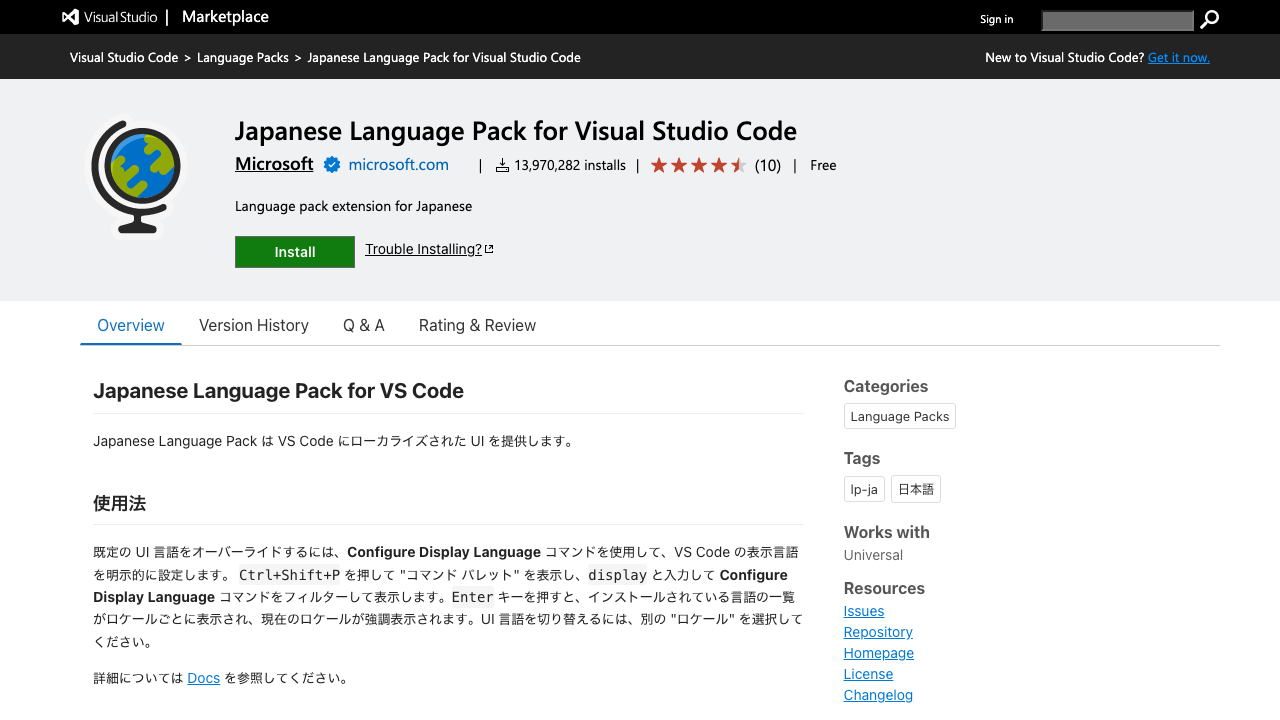
A helpful thing to remember is that language switching is fully reversible. If you want to go back to English, just repeat the same process and select "en." Feel free to experiment.
SECTION 04
How to Make AI Always Respond in Japanese (.cursorrules)
Even with a Japanese UI, the AI might respond in English. This happens because UI language settings and AI output language are independent systems. To lock AI responses to Japanese, you use the .cursorrules file.
.cursorrules is a configuration file placed in your project root that lets you pre-define instructions for the AI. Language preference is one of those instructions.
- Create a file named ".cursorrules" in your project root
- Add a single line: "Please respond in Japanese"
- Save it — AI responses will now consistently come back in Japanese
I've had the experience of asking ChatGPT a question in Japanese and getting an English response back. AI models don't always infer your preferred language automatically. The same applies to Cursor, which is why an explicit instruction in .cursorrules is the most reliable approach.
Cursor offers two rule systems: "Rules for AI" (global settings) and "Project Rules" (per-project). For language preference, setting it globally is recommended so you don't have to repeat it in every project.
That said, in most cases, typing in Japanese gets you Japanese responses without any configuration. Having built over 40 services, I use Cursor daily — typing "Create a user registration screen" in Japanese produces Japanese code and explanations naturally. The setting-free experience works more often than you'd expect.
.cursorrules isn't just for language settings — it's a file for coding conventions and project-specific rules that improve AI output quality. Using language configuration as an entry point to this file is a great way to level up your Cursor workflow.
SECTION 05
Troubleshooting Checklist When Japanese Doesn't Apply
Followed every step but still seeing English? Run through this checklist from top to bottom.
Here's what to try first:
- Close all editor windows and fully restart (closing a tab isn't enough)
- Open Command Palette and check that "Configure Display Language" shows "ja" as selected
- Verify that Japanese Language Pack is enabled in the extensions list
- If nothing works, switch to "en" first, then switch back to "ja"
The most common issue is thinking you restarted when you didn't. On macOS, closing a window doesn't quit the app. Right-click the Dock icon and select "Quit," or use Cmd+Q to fully terminate Cursor.
Another overlooked scenario is having multiple workspaces or windows open. Language changes don't instantly propagate to all windows. After changing the setting, close everything and open just one window to confirm.
SECTION 06
What to Do When Updates Reset Your Language to English
Cursor is actively developed with frequent update cycles. Language settings can reset to English during these updates. This is Pitfall 3 — subtle but recurring.
When this happens, the fix is the same as the initial setup:
- Open Command Palette (Ctrl+Shift+P or Cmd+Shift+P)
- Type "Configure Display Language"
- Select "ja" and restart the editor
The Language Pack itself isn't uninstalled, so no reinstallation is needed. Just reselect the language. It takes seconds, and knowing this routine removes the panic when it happens.
That said, each time this occurs, it reinforces the principle that more settings means more things that can break after updates. Dev tools are tested against their default state, so the further you drift from defaults, the more unexpected behavior you'll encounter.
If the repeated resets frustrate you, consider the option discussed in the next section: using the English UI permanently. Zero maintenance cost is a real benefit.
SECTION 07
Why the English UI Might Actually Be the Better Choice
After walking through all the localization steps, here's an honest take: I personally use Cursor with the English UI. The reason is simple — my interaction with the AI is already in Japanese, so the menu language doesn't matter in practice.
Benefits of keeping the English UI:
- Tutorials and official documentation use English menu names, so you can follow along without translation guesswork
- No risk of settings resetting after updates — zero maintenance cost
- Fewer configuration files mean more stable editor behavior
Through years of trial and error, I've found that keeping settings minimal produces the most stable experience. Both Cursor and other AI coding tools work best when you don't over-configure. The vendor tests against defaults — every setting you add is a potential breakpoint.
If English menus feel uncomfortable, Japanese Language Pack is absolutely the right choice. The goal is picking whatever makes you most productive — there's no inherently superior option.
One more thing to consider: English prompts may yield slightly better AI responses. Since the ChatGPT era, I've noticed that English input can produce different quality output. For critical implementation discussions, typing in English and getting Japanese responses back is a viable hybrid approach.
SECTION 08
What Windows Users Should Fix Before Localization
For Windows users, there's a more pressing issue than language settings: command execution problems in PowerShell.
Cursor's terminal defaults to PowerShell, and the differences between PowerShell and Unix commands cause frequent errors. AI-generated commands that don't run as-is, path separator issues — these problems exist regardless of your language settings.
Here's how to fix it:
- Install WSL (Windows Subsystem for Linux)
- Set Cursor's default terminal to WSL
- This alone eliminates most command compatibility issues
Mac users rarely face this issue since macOS ships with a Unix-based terminal. If you're on Windows and feeling like "something isn't working right," address WSL setup before touching language settings. Environment stability comes first.
The localization steps themselves are identical on Windows and Mac. But if your development environment foundation isn't stable, no amount of configuration will make things comfortable. AI code editors like Cursor run commands under the hood constantly, making terminal environment setup the top priority.
SECTION 09
Getting More Out of .cursorrules Beyond Language Settings
While .cursorrules was introduced for language settings, its real power lies far beyond localization. Defining project-specific coding rules in this file dramatically changes the quality of AI-generated code.
Examples of effective .cursorrules entries:
- "Write in TypeScript" and "use functional components" for tech stack specification
- "Use camelCase for variable names" for coding conventions
- "Always include error handling" for quality standards
With project context in this file, you don't need to repeat the same instructions in every chat. For team projects, committing .cursorrules to the repository applies the same AI rules across all team members.
"Please respond in Japanese" is just the entry point to .cursorrules. How well you develop this file determines how effectively you use Cursor's AI capabilities. Use language configuration as the catalyst to start building your own project rules.
One important caveat: keep .cursorrules contents minimal as well. Stuffing too many rules in can confuse the AI's prioritization and actually degrade response quality. Be selective — include only the rules you need enforced every single time.
SECTION 10
Summary: Maximum Results from Minimal Configuration
Cursor's Japanese setup follows one key principle: treat UI language and AI response language as separate concerns. UI uses Japanese Language Pack; AI responses use a single line in .cursorrules. Each is independent — doing only one leaves you halfway.
Quick review of the three failure patterns:
- Forgetting to restart and select the language after installing the Language Pack
- Localizing the UI but missing the AI response language configuration
- Not noticing settings reset after an update
And as you've gathered by now, using the English UI is a perfectly valid choice. When your AI interaction is already in Japanese, menu language becomes secondary.
What matters isn't time spent on configuration — it's time spent actually writing code with Cursor. The localization setup takes minutes. Get it done quickly and focus on building.