
SECTION 01
Tasks Codex CLI Is Good At vs. Bad At — The Bottom Line
Let me start with the conclusion. Codex CLI shines at "hand-it-off-and-wait" style tasks. It's built for delegating chunked units of work — implementing an entire feature, running completeness checks, or batch-producing routine tasks.
Conversely, it's a poor fit for tasks that require back-and-forth adjustments. Fine-tuning designs, rapid trial-and-error iterations, and minor few-line fixes all become frustrating due to Codex CLI's wait times.
This framework comes from hands-on experience using Codex CLI. My honest first impression was being impressed by the GPT model's intelligence while feeling the slowness. It handles delegated work thoroughly and reliably, but waiting around for every small tweak just doesn't work.
In other words, the decision axis for tool selection is simple.
- Hand-off tasks → Codex CLI (batch it up and let it run)
- Interactive adjustments → Cursor or Claude Code (real-time trial and error)
- When in doubt → Start with Cursor, switch to Codex if it's not working
It took a few detours before arriving at this framework. At first, I tried to do everything with Codex and it was inefficient. From the next section onward, I'll walk through the concrete setup steps and the experience that led to this decision framework.
SECTION 02
Getting Started with Codex CLI (Minimum Steps)
Setting up Codex CLI isn't difficult if you're comfortable with the terminal. You can install it via npm, Homebrew, or binary, and authenticate with a ChatGPT account or API key on first launch. Follow the official README and there should be very few sticking points.
That said, many people stumble on the sandbox settings. In the default mode (workspace-write), file editing and local command execution within the workspace are allowed, but network access is off. This means you'll hit "can't connect" errors when trying to run projects that use external APIs. It's confusing at first, but this is a deliberate security design.
For real-world use, you'll need to adjust the network-related settings. Specifically, the steps look like this:
- Grant access to the project's root directory
- Enable network access settings as needed
- Configure execution permissions for commands required by tests
A great first task to try is implementing a single feature with clear specifications. A request like "add this API endpoint and write tests for it" fits perfectly into Codex CLI's sweet spot. The key is to start with tasks that have clear goals rather than ambiguous instructions.
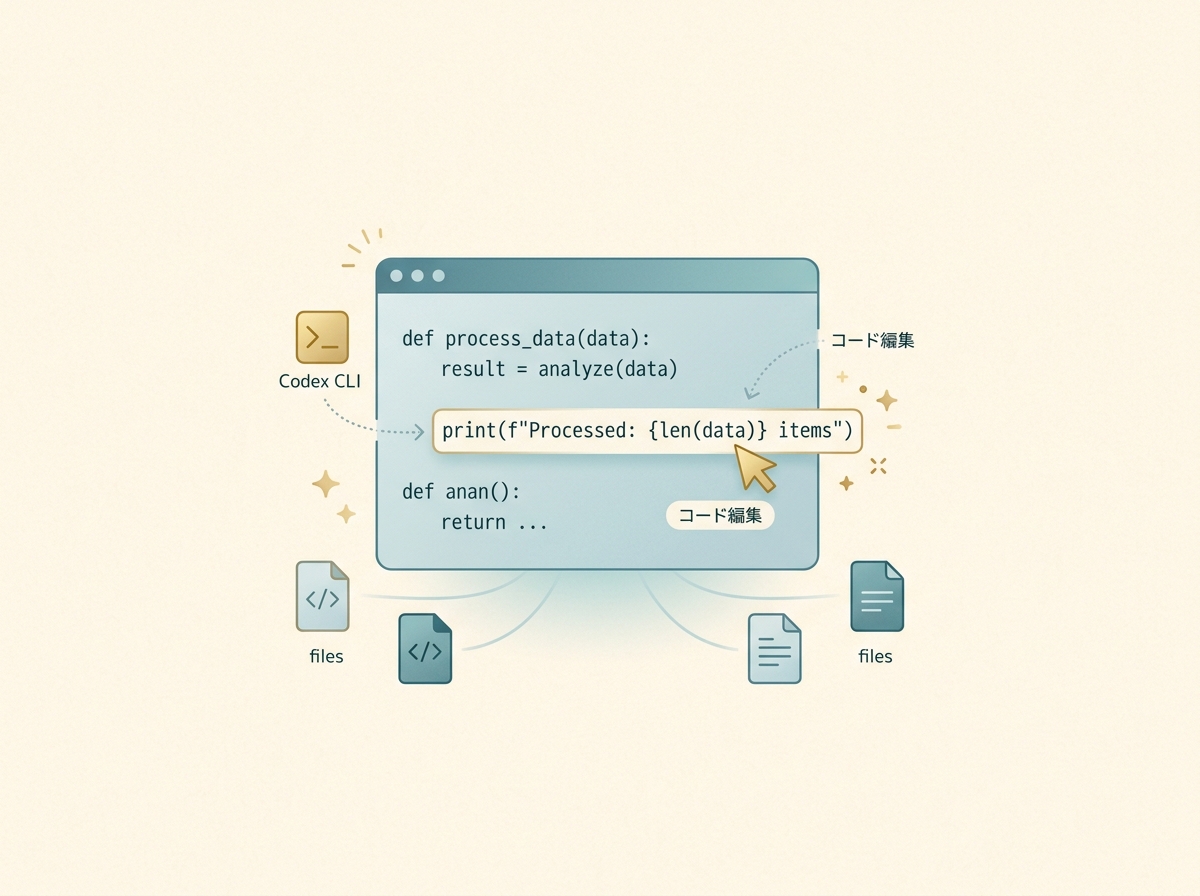
Once setup is complete, verify things work with a small task before moving to production work. If you hand off a massive refactoring right away, even reviewing the results takes forever. Build your first success with a lightweight task, then gradually expand the scope — that's the pragmatic approach.
SECTION 03
Dividing Work with Claude Code and Cursor — Real-World Patterns
After plenty of trial and error, the division of labor I've settled on is: Codex is the "contractor," Claude Code is the "senior developer," and Cursor is the "hands-on adjuster." Each has distinctly different strengths, so using them together ends up being more efficient than picking just one.
In my actual development flow, the pattern of throwing larger tasks to Codex CLI and returning to Cursor for fine adjustments has become the norm. For example, "implement this entire screen's functionality" goes to Codex, while "change the button color and adjust the margins" goes to Cursor.
I use Claude Code when I need to talk through design decisions interactively. Questions like "is this implementation approach right?" or "how should we handle edge cases?" are its strong suit — the quality of interactive dialogue is high. Occasionally, Codex also breaks through a problem with a different approach that other tools couldn't solve.
Here's a summary of each tool's characteristics:
- Codex CLI → Chunked implementations, reviews, batch production of routine tasks
- Claude Code → Design consultation, debugging, situations requiring complex judgment
- Cursor → UI tweaks, small fixes, real-time trial and error
There's one more major difference. CLI-based tools are lightweight to start and can run in parallel for multitasking. Opening multiple terminals and running separate tasks in each is a strength unique to CLI tools. Once you get used to the feeling of making progress without opening an IDE, it's hard to go back.
SECTION 04
Cost Awareness and the "Can I Keep Using This?" Decision Line
To be honest, running Cursor, Claude Code, and Codex together costs tens of thousands of yen per month. I'm on the top-tier plan for all of them, and since each one pulls its weight, I can't cancel any of them. The fact that I "can't cancel" itself speaks to the value of each tool.
Note that each tool has a different cost structure depending on how you use it. Codex has usage included in subscription plans as well as pay-per-token API key billing. Cursor and Claude Code also have different usage limits and pricing tiers per plan. Choosing the plan that matches your usage is the first step in cost management.
In terms of token efficiency, Codex feels like it's harder to hit limits even with heavy use. Claude Code seems to consume more tokens for the same workload, hitting caps sooner. When deciding which tool to make your primary one, this sense of "how much can I actually use" is impossible to ignore.
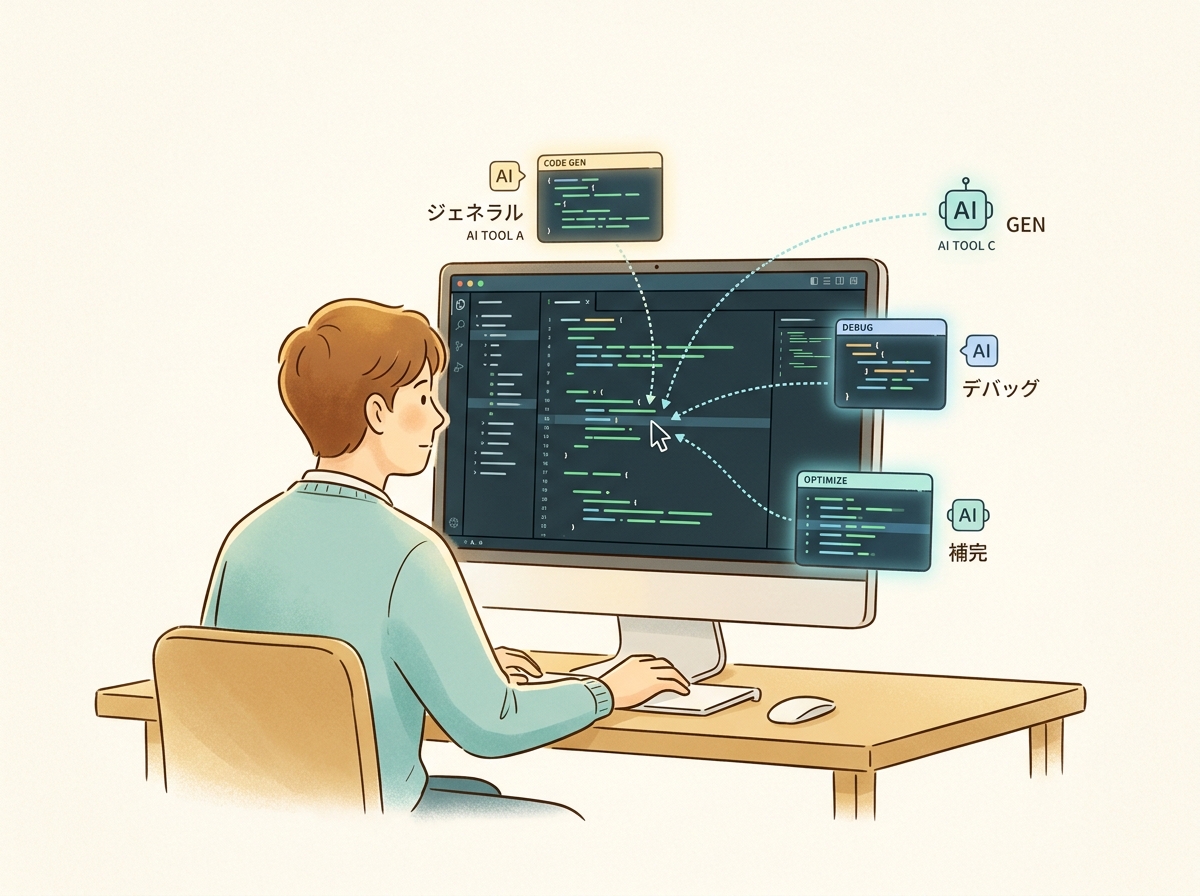
One thing to watch out for is the trap of costs ballooning unexpectedly during full-auto execution. When an agent runs autonomously, there's no human checkpoint, and by the time you notice, it may have consumed a massive number of tokens.
Here are effective countermeasures:
- Define the task scope upfront (explicitly state "only this feature")
- Don't leave it unattended for long — set checkpoints for intermediate review
- Use full-auto mode only for tasks you're already comfortable with
The decision of "can I keep using this" should focus on the time saved rather than the monthly cost itself. If an implementation that would take half a day by hand finishes in minutes, the tool cost more than pays for itself. However, you need to actually use it for a few weeks to get that sense.
SECTION 05
Codex CLI's Weaknesses and How to Work Around Them
The biggest weakness of Codex CLI is that you can't easily undo mistakes. Claude Code has a Rewind feature — if you think "actually, that's wrong," you can casually roll back. Codex doesn't have that, so your only option is to check the result and manually run git revert.
This is a real pain point, and Codex's awkwardness stands out in situations requiring fine adjustments. That's exactly why the "right fit vs. wrong fit" judgment matters. For tasks where frequent do-overs are expected, it's better to hand them to Cursor or Claude Code from the start.
Another weakness is slow processing speed. This is a structural characteristic of Codex CLI, so rather than waiting for it to get faster, it's more practical to build your workflow around the assumption that it's slow. Specifically, these approaches help:
- Run multiple tasks in parallel across separate terminals
- Use Codex's wait time to work on other things (reviews, documentation, etc.)
- Increase the granularity of each task to reduce the number of submissions
As you continue running things in parallel, a new problem emerges: managing multiple agents itself becomes exhausting. Which terminal is running which task, which ones finished, which ones failed — this management overhead grows exponentially as the number of agents increases.
To solve this pain point, I built a tool called KingCoding. It systematizes status management for running multiple AI agents in parallel and automates verification. It was designed to directly solve the inconveniences I felt while using Codex CLI in real work.
SECTION 06
The "I Don't Need an IDE" Feeling That CLI Tools Bring
Once you start running Claude Code and Codex CLI across multiple terminals, you notice that you're looking at code directly less and less. The agents read files, make edits, and run tests — all you do is give instructions and review results.
This isn't an exaggeration — the feeling is that IDE-style tools like Cursor are becoming less necessary. Of course, you still need an editor for UI tweaks and visual checks, but logic implementation and refactoring can be completed entirely in the terminal.
Here are the concrete advantages of CLI-based tools:
- Lightweight startup (no heavy initialization like an IDE)
- Multitasking comes naturally (just open more terminal tabs)
- Works the same in remote environments and over SSH
- Especially well-suited for server-side development
However, this workflow style is for people comfortable with the CLI. If you're not used to terminal operations, an editor-integrated tool like Cursor will be a much less stressful starting point. Choose based on your own skill set and working style.
I think of editor-integrated and CLI-based tools as not mutually exclusive, but complementary. Normally I push forward aggressively with CLI tools, and only switch to an editor for things that require visual judgment. This combination is the most efficient workflow I've found so far.
SECTION 07
Balancing Sandbox Security and Practicality
Codex CLI's sandbox allows workspace file editing and local command execution in the default mode (workspace-write), but network access is off. This is designed to prevent AI agents from making unintended external communications. From a security perspective it's the right call, but in practice, you often can't use it as-is.
For example, tests that call external APIs won't work, and package installations fail — these problems come up frequently with the default settings. This is a major reason people feel "Codex CLI setup is a hassle."
Key points when adjusting for real-world use:
- File operations under the project directory can generally be allowed
- Enable network access as needed and limit its scope
- Restrict shell command execution permissions to testing and build commands
- Never allow connections to production environments
There's no single right answer for "how much to loosen," but listing out "what tasks I want the agent to do in this project" first makes the decision easier. Open only the permissions you need and keep everything else locked down. Getting this right requires an upfront inventory of the work involved.
For team development, sharing sandbox settings by including them in the repository is recommended. If each member loosens settings independently, the security baseline erodes. Version-controlling the configuration file and making it a review target maintains the balance between safety and convenience.
SECTION 08
Setting Up Context Files for AI Agents
To use Codex CLI reliably in production, preparing context files that the agent can read is essential. Having a file that summarizes project-specific rules and constraints — AGENTS.md for Codex, CLAUDE.md for Claude Code — dramatically improves the accuracy of instructions.
The content to put in context files is similar to onboarding materials for a new team member. Directory structure, coding conventions, framework-specific caveats — write down everything you'd normally explain verbally every time.
Here's a breakdown of high-impact items to include:
- Project tech stack and version constraints
- File naming conventions and directory structure rules
- How to run tests and coverage standards
- A blacklist of forbidden operations (like connecting to the production database)

Context files are not something you write once and forget — they're something you grow over time. Whenever you find a pattern where the agent made a mistake, add a rule for it. This accumulation gradually raises the quality of the agent's output.
In team development, making these files subject to code review is effective. Treating "how we instruct AI" as part of the team's technical decision-making prevents knowledge silos and moves toward a state where anyone can get the same quality output.
SECTION 09
Integrating into Team Issue and PR Workflows
When incorporating Codex CLI into team development, the key is whether it integrates naturally with issues and PRs. For individual use, you just fire it off in the terminal and wait. But on a team, you need visibility into who assigned what to which agent.
A practical integration pattern is launching an agent for an issue and submitting the result as a PR. If you set up templates so that issue descriptions can be directly converted into agent instructions, the workflow runs smoothly.
There are also nuances to how PRs should be created:
- Explicitly label PRs created by agents
- Require human review and never give merge permissions to agents
- Record which agent generated the code in commit messages
The important point here is treating the agent as a "participant in the team process." Rather than a standalone tool, position it as a team member operating within the existing development flow — this makes operational design much easier.
That said, rolling it out to the entire team from the start is high risk. It's more realistic for one person to pilot it, document the patterns that work, and then scale horizontally. Agent operation know-how tends to become siloed, so deliberate documentation is essential.
SECTION 10
A Decision Framework for Whether to Keep Using Codex CLI
Finally, let me lay out a decision framework for whether to adopt Codex CLI and whether to continue using it. The key is to decide based on whether it fits your development style, not on whether the tool is "good" or "bad."
First, whether you're comfortable with terminal operations is the initial fork in the road. CLI tools feel completely different from GUI tools, so if you have resistance to the terminal, the adoption itself becomes stressful. In that case, there's no need to force yourself to choose Codex.
The next decision axis is whether your daily development includes chunked tasks. The following development styles benefit most from Codex CLI:
- You frequently implement features as complete units
- You want to batch-process tests and refactoring
- You want to run multiple tasks in parallel
- You want to automate reviews and completeness checks
Conversely, if your work centers on design adjustments or involves dozens of do-overs per day, an editor-integrated tool like Cursor will be more comfortable. It's not about which tool is better — it's about whether the nature of your work matches the tool's characteristics.
From my experience, I can say that trying to make one tool do everything always leads to inefficiency. Codex CLI, Claude Code, and Cursor each have different strengths. Understanding those differences and using each where it fits best is the fastest path to making AI coding tools stick in real work.