
SECTION 01
What Changes When You Automate Information Gathering with Cowork
Every morning: open Nikkei, cycle through Feedly, scroll through X. Information gathering is a battle against the pressure of "I have to do this," and the quiet anxiety of missing something is a real source of stress. With Cowork, you can delegate the entire routine to AI.
Until now, AI chat was about "asking questions and getting answers." What makes Cowork fundamentally different is that you can delegate the work itself, not just get advice. Opening a browser, fetching information, summarizing it, and sending notifications—this entire workflow runs on nothing but natural language instructions.
Another major shift is that Cowork can leverage your logged-in browser environment through Claude in Chrome and approved connections. It can access services you're already signed into within Chrome—within the permissions you grant—which drastically reduces the authentication headaches that have always plagued traditional scraping.
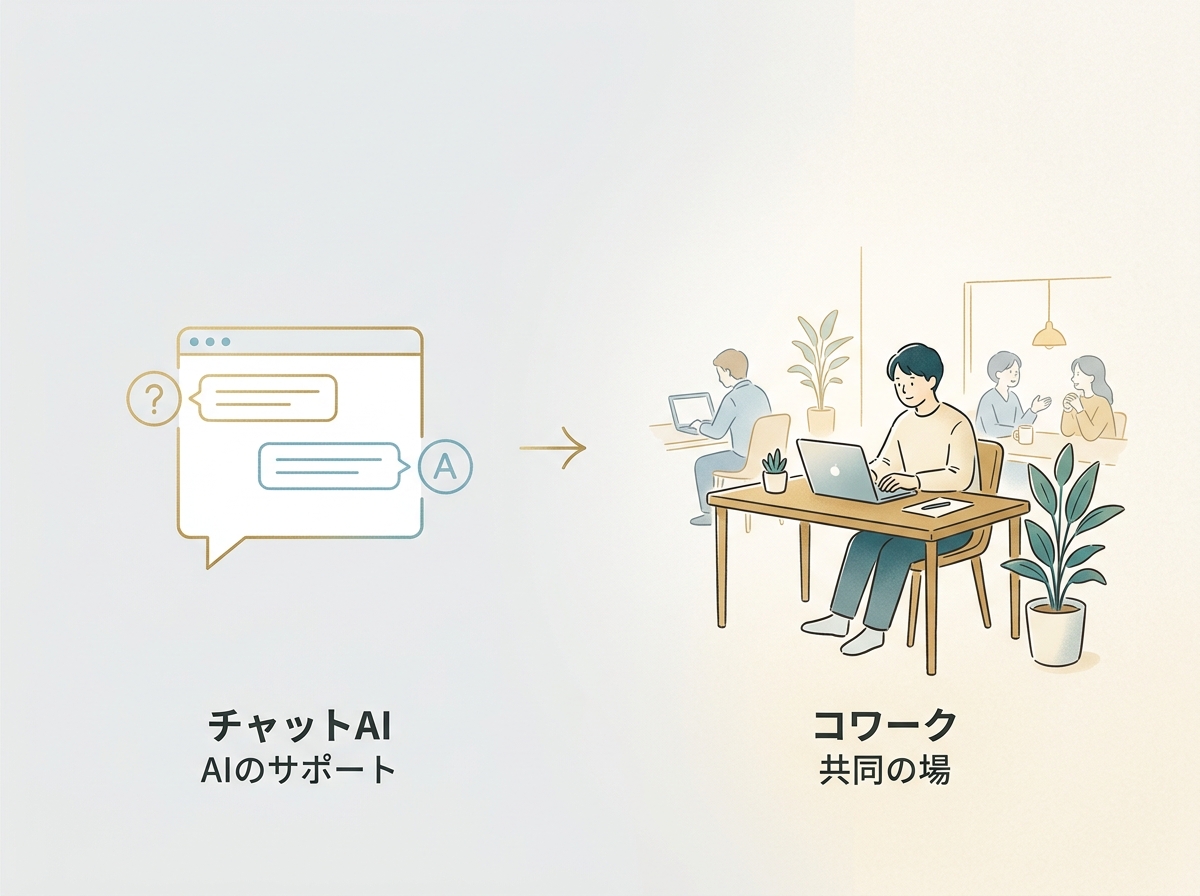
In other words, Cowork is a tool that lets you experience the shift from "asking AI" to "having AI act for you." Even without technical knowledge, you can take your first step toward automation just by writing instructions in plain language.
SECTION 02
Step 1: Create a Task in Cowork
First, open the Claude desktop app. Along the top tabs you'll see "Chat," "Claude Code," and "Cowork"—select Cowork. When you open the Cowork tab, you'll see ideas and examples displayed, which are a great starting point if it's your first time.
Creating a task is as simple as clicking the "New Task" button. You write your instructions in plain natural language. For this example, I wrote something like: "Collect AI, technology, and gadget news from Nikkei, Feedly, and X, then send a summary to Discord."
Here are some tips for writing effective instructions:
- Specify your information sources explicitly (state exactly which sites you want checked)
- Include genres or keywords you're interested in (improves filtering accuracy)
- Specify the output destination and format (e.g., send to Discord, summarize as bullet points)
You can also choose which model to use. However, the available models vary depending on your plan and features. The practical approach is to run it first, then adjust based on the results.
SECTION 03
Step 2: Set Up Notifications to Discord
For the destination of collected information, we'll use Discord. Create a Webhook from your Discord server settings, include that URL in your Cowork instructions, and you're all set. You can create the Webhook from Discord's "Integrations" menu.
What was interesting in this test was that Cowork sent the Discord Webhook notification by executing JavaScript in the browser. Normally you'd need to write a script in Python or Node.js to hit the Webhook, but Cowork chose to send the request directly via JavaScript running in the browser.
In other words, it achieved external service notifications without creating a single program file. This is a huge deal for people who don't write code. The assumption that "you need to know programming" to achieve automation is fading.
Here are some tips for improving filtering accuracy:
- Be specific about your areas of interest (narrow it down from "AI in general" to something like "practical applications of AI agents")
- Explicitly state what to exclude (e.g., "Skip stock price and exchange rate breaking news")
- Specify output format in advance, such as "headline + one-line summary"
SECTION 04
Step 3: Automate Daily with Scheduled Execution
Once you've confirmed the task works, the next step is setting up a recurring schedule. Cowork has a "Scheduled Tasks" feature where you can specify execution times. You can even set multiple runs per day—morning, noon, and evening.
Note that scheduled tasks run while your PC is on and the Claude Desktop app is open. It's not a fully cloud-based, set-and-forget solution, so pay attention to your PC's sleep settings and whether the app is running.
In this demo, I set up three daily runs—morning, noon, and evening—with each sending notifications to Discord. Checking Discord, neatly organized news arrives for each time slot, letting you stay on top of trending topics without manually scrolling through social media.

The benefit of scheduled execution is the passive experience of information arriving without you doing anything. Removing the burden of actively seeking out information frees up your morning for other work.
Once configured, all you need to do is review the results and fine-tune your instructions. You can improve accuracy with follow-up instructions like "focus only on more technical articles" or "include international news too."
SECTION 05
Cowork's Strengths—From Someone Who's Built Their Own Automation
Through past trial and error, I had already built a custom system that aggregates information from multiple sources—AdMob, YouTube, X, note, RSS—has AI summarize it, and sends a daily email automatically. What Cowork does is a natural extension of exactly this.
The hardest part of building it myself was maintaining login sessions and bypassing bot detection. X in particular aggressively blocks automated access, making scraping extremely difficult. I spent an enormous amount of time on session management code alone.
Cowork can leverage your browser sessions through Claude in Chrome and approved connections, which means it sidesteps this biggest barrier by design. As an engineer who's struggled with authentication issues for years, I was genuinely impressed that browser sharing as a concept solves the problem.
What's even more significant is that the same thing can be achieved without writing a single line of code. The automation pipeline I spent days building can be replicated in Cowork using nothing but natural language instructions. This is a major shift for both technical and non-technical users alike.
SECTION 06
Tasks Cowork Is Good At—and Tasks It Isn't
Cowork shines brightest with routine operations on services that don't offer APIs. Data entry into internal admin panels or daily repetitive tasks following the same steps are squarely in Cowork's sweet spot.
Here's a breakdown of well-suited tasks:
- Periodic data retrieval from authenticated services (leveraging login sessions through approved connections)
- Data entry into internal tools and web services that lack APIs
- Repetitive browser-based operations (report generation, form filling, etc.)
On the other hand, it's not suited for high-speed processing of large data volumes or tasks requiring perfect accuracy. Since it's browser-based, there are speed limitations, and changes in page layouts or site specifications can cause instability.
A good rule of thumb is to ask: "Is this something a human currently does in a browser?" and "Is it repeated daily?" If both answers are yes, there's plenty of value in automating it with Cowork.
SECTION 07
The New Bottleneck Beyond Automation
What I realized after throwing a flood of tasks at AI is that the workload didn't shrink—the review workload exploded. The bottleneck didn't disappear; it just moved.
Even when Cowork automates information gathering, a human still needs to judge whether the collected information is actually useful. If you passively accept noisy information as-is, you'll end up reading through everything anyway—no different from manual browsing.
So what I'm doing now is entering a phase of designing the granularity and frequency of review. For example, I receive headline-only breaking news in the morning and review a consolidated digest in the evening.
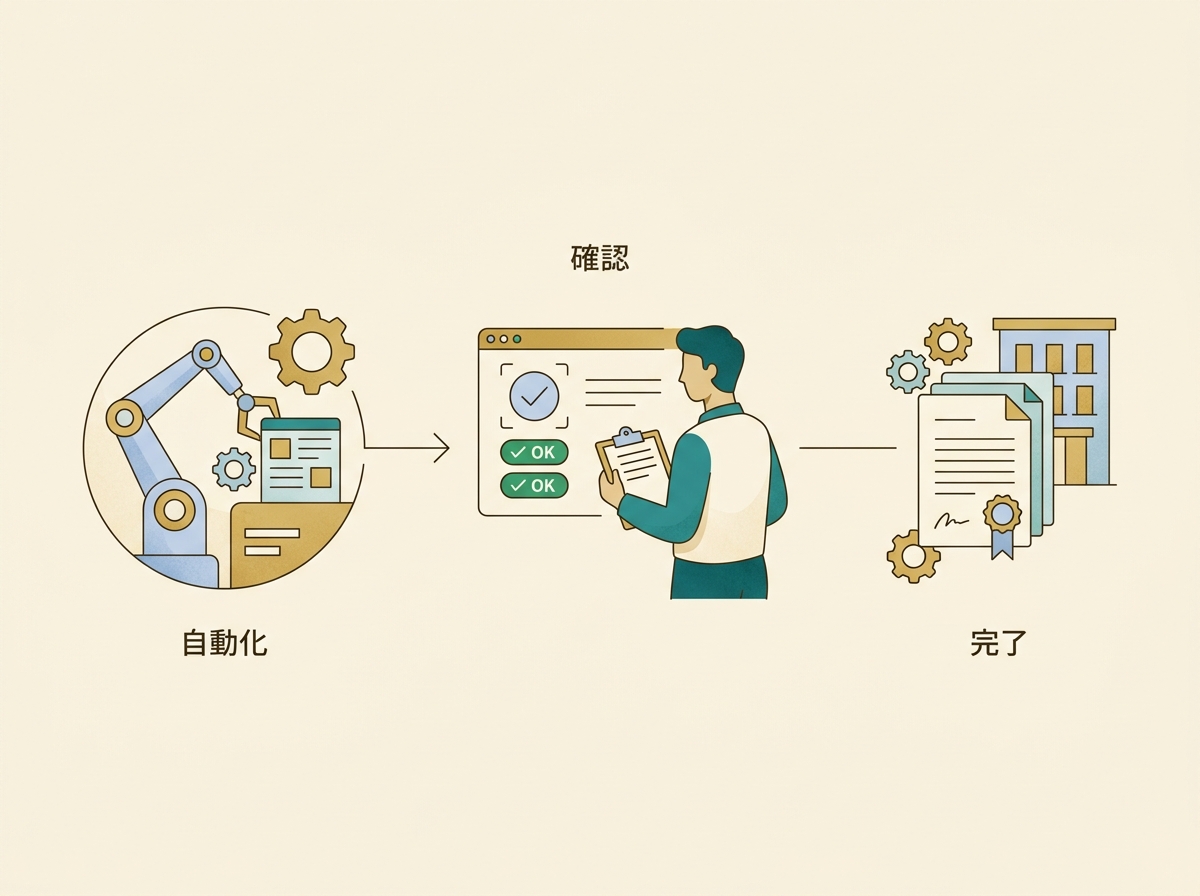
From my experience, automation only works when you design the review process alongside the delegation—not just "hand it off and forget it." When adopting Cowork, deciding on notification frequency and format upfront makes later adjustments much smoother.
SECTION 08
Important Precautions When Using Cowork
During a phase when I was using AI agents without thinking too carefully, I had incidents caused by being too lax with MCP permission settings. Specifically, the AI committed to git on its own and even deleted a database—these things actually happened.
Cowork carries the same risks. If you grant broad browser operation permissions, unintended actions on wrong pages or unexpected data transmissions can occur. There's also the risk of prompt injection—where hidden instructions embedded in web pages, emails, or documents influence the AI—which is officially warned about. Don't grant broad permissions to unfamiliar sites.
Getting the granularity of automation wrong can lead to irreversible situations, so starting with a narrow scope is the golden rule.
Scraping also requires caution:
- Some services prohibit scraping in their terms of service (always check in advance)
- Heavy automated access can put strain on the service
- It's recommended to add a step where you ask the AI: "Is automated retrieval acceptable under this service's terms?"
You also need to be mindful of usage consumption. Cowork consumes more usage than regular chat, and usage across all screens counts toward the same limit. If you set up three scheduled runs per day, your usage naturally increases accordingly. A practical approach is to start with a lower-cost model and switch to a higher-tier model only if accuracy falls short.
SECTION 09
The Sense of "Working in Parallel" That Cowork Creates
Since I started using Claude Code, I've been running multiple terminals in parallel. While one generates code, another implements a different feature. As long as the changes don't overlap, there are no conflicts—it feels like zero wait time.
Cowork's scheduled tasks follow the same philosophy. By replacing recurring work with a form that doesn't require human hands, you can focus purely on decisions and design. The core value is being able to work on something else while AI runs in the background.
This isn't just efficiency—it's an experience where the very structure of work changes. You're working alone, yet you get the parallel feeling of a team dividing tasks.
With support expanding to PowerPoint and spreadsheet generation, delegating not just information gathering but output creation is becoming realistic. Having AI handle the research while you use the results for decision-making—this division of labor is becoming part of the daily routine.
SECTION 10
Start with Just One Task
Cowork has many features, but starting with just "fetch information from one site and send it to Discord" is more than enough. Start small, review the results, and gradually add more sources and filtering conditions—that's the reliable approach.
Here's a quick recap of the setup steps:
- Step 1: Create a task from the "Cowork" tab in the Claude desktop app
- Step 2: Set up a Discord Webhook and include it as the notification destination in your instructions
- Step 3: Configure scheduled execution with Scheduled Tasks (PC and app must be running)
Automation only starts working when you design the review process alongside it—not just "delegate and done." Simply deciding on notification format and frequency upfront makes later fine-tuning much easier.
The experience of delegating work to AI changes how you think about the way you work once you try it. Start by creating one task in Cowork and running it. What you see from there will spark ideas for what to automate next.