SECTION 01
The Verdict: WSL2 Is the Safe Bet on Windows, But It's Not Your Only Option
If you want to use Claude Code on Windows, starting with WSL2 is the safest choice. That said, as of April 2026, it's not the only way.
According to Anthropic's official documentation, Claude Code requires Git for Windows or WSL on Windows, and can be launched from PowerShell, CMD, or Git Bash. The official troubleshooting guide even notes that in some cases, native Windows offers better file system performance than WSL.
When I was using Cursor on Windows, I was genuinely frustrated by PowerShell throwing errors every time I ran a command. The AI would try to execute something and stall each time—it was impossible to get any real work done.
The moment I installed WSL2, all those struggles vanished like they never existed. A Linux environment runs inside Windows, so not just Claude Code but virtually every development tool works just like it does on a Mac.
There are three main options for running Claude Code on Windows:
- WSL2 (Windows Subsystem for Linux) — Sets up a Linux environment inside Windows. Best compatibility with Linux-based toolchains, and the most community resources available
- Git Bash (Git for Windows) — Officially supported. The appeal is being able to start without WSL
- PowerShell / Command Prompt — Officially supported, but prone to compatibility issues with Linux-based commands
Any of these can get Claude Code running. If you're familiar with Linux toolchains or want to minimize trouble, WSL2 is the safe pick—but if you just want to try things out quickly, starting with Git Bash is a perfectly reasonable choice.
SECTION 02
What Happens with PowerShell: A Real-World Experience
I understand the temptation to go with PowerShell. It comes pre-installed on Windows, and not needing any additional installation seems appealing.
Claude Code now officially supports launching from PowerShell. However, the commands Claude Code generates and executes internally often assume a Linux shell, which is where the friction starts.
When I was using PowerShell with Cursor, the AI failed every time it tried to execute a command. The path format was wrong, commands weren't found, permissions were insufficient. Manually fixing each one simply isn't practical.
The same structural issues can occur with Claude Code. Here are some typical examples:
- Linux commands like
rm -rfandchmoddon't work as-is - Path separators become
\instead of/, breaking scripts - Shell scripts (
.sh) can't be executed in PowerShell
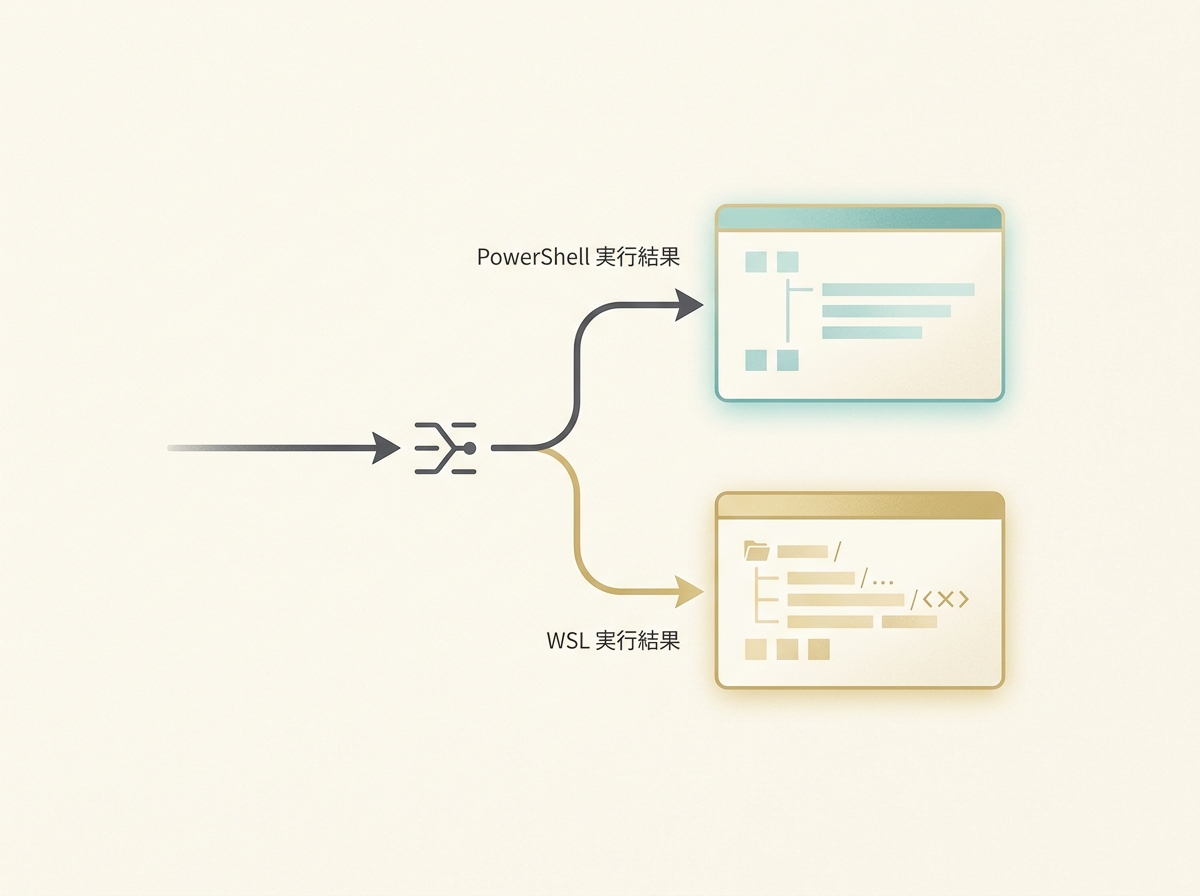
These aren't issues you can fix by tweaking settings—they stem from fundamental differences in OS culture. Since Claude Code often generates commands designed for a Linux shell, receiving them in PowerShell incurs a translation cost every single time.
WSL2 and Git Bash exist precisely to avoid this translation cost. The key mindset is not to abandon PowerShell entirely, but to switch just your development terminal to WSL or Git Bash.
SECTION 03
Installation: The Native Installer Is the Standard
As of 2026, the native installer is the recommended way to install Claude Code. While global installation via npm used to be the norm, npm-based installation is now deprecated.
Option 1: Using WSL2
Start by installing WSL2 on the Windows side.
- Install Windows Terminal — One line with
winget install Microsoft.WindowsTerminal - Install gsudo — A tool that simplifies admin-level operations.
winget install gerardog.gsudo - Install WSL2 — Just
wsl --install. A restart may be required
Once WSL2 installation is complete, Ubuntu is set as the default distribution. Open Windows Terminal and you'll see an Ubuntu tab—click it to enter the Linux environment.
To install Claude Code on the WSL side, use the native installer.
curl -fsSL https://claude.ai/install.sh | bashThat's all it takes. No need to pre-install Node.js.
Option 2: Native Windows (Without WSL)
If you want to start directly on Windows without WSL, first install Git for Windows. Then run the following in PowerShell:
irm https://claude.ai/install.ps1 | iexAlternatively, you can use winget:
winget install Anthropic.ClaudeCodeAfter installation, you can launch with the claude command from PowerShell, CMD, or Git Bash.
npm Installation (For Compatibility)
The older npm install -g @anthropic-ai/claude-code still works, but it's officially deprecated. If you go the npm route, you'll need Node.js 18 or later.
Unless you have a specific reason, using the native installer is the safe choice.
SECTION 04
Common Failure Patterns on Windows and How to Fix Them
Even when following the steps exactly, you can fall into Windows-specific pitfalls. Here are the most common failure patterns and their solutions.
The most frequent issue is the "command not recognized" error. If typing claude gives you command not found or the equivalent, the install location isn't in your PATH. The native installer sets PATH automatically, but you may need to restart your terminal for the changes to take effect.
The next most common category is permission-related errors. These break down as follows:
- Permission errors on the npm compatibility route → Don't force it with sudo—switch to the native installer instead. The official docs also advise against
sudo npm install -g - Windows execution policy is still set to
Restricted, blocking scripts - Lack of file write permissions prevents Claude Code from applying code changes
API keys not being loaded is another classic problem. Environment variables set in PowerShell don't carry over to the WSL side, and vice versa. For WSL, write them in ~/.bashrc; for PowerShell, write them in $PROFILE.

A subtly painful issue is the hassle of copying API keys or auth codes from an iPhone. On a Mac, AirDrop or Universal Clipboard makes it instant, but on Windows you're stuck typing them manually. A practical workaround is to use a cloud-based password manager or email the credentials to yourself and paste them in.
SECTION 05
VS Code Integration: Switching Your Terminal to WSL
Claude Code is a CLI tool, so using it directly from VS Code's integrated terminal is the most natural workflow. If you're using WSL, you'll need to change the settings since VS Code defaults to PowerShell.
In VS Code settings, search for terminal.integrated.defaultProfile.windows and change the default profile to "Ubuntu (WSL)". That's all it takes—when you open a terminal tab in VS Code, it will automatically enter the WSL environment.
If you're using a native Windows environment, setting Git Bash as the default profile is also effective.
It's also important to be intentional about the division of labor between the CLI and editor. Here's a recommended approach:
- Let Claude Code (CLI) handle — Code modifications, test generation, Git operations, file creation
- Use VS Code (editor) for — Reviewing diffs, getting an overview of multiple files, running the debugger
- When judgment is needed — Review Claude Code's suggestions, then fine-tune in the editor
You might also wonder about the distinction from Cursor or GitHub Copilot. The decision criterion is simple: if you want inline completions inside the editor, go with Copilot or Cursor; if you want to delegate work across an entire project, use Claude Code.
Cursor is more intuitive thanks to its GUI, but Claude Code's strength is running from a single prompt through multi-file edits all the way to committing. When using both, day-to-day micro-completions go to Copilot while larger batches of work go to Claude Code—that's the split that works best in practice.
SECTION 06
First Practical Tasks and Prompt Examples After Setup
Once your environment is set up, trying it out in an actual project folder is the fastest way to learn. Navigate to your working directory in the terminal and launch with the claude command.
Your first prompt should be one that helps Claude Code understand the big picture of your project. For example, asking "Explain the structure of this project" will have it read the directory structure and package.json and return an overview.
Next, try a sequence of tasks that mirror real work. Here's a recommended flow:
- "Fix the bug in this file" — Verify the basic code modification workflow
- "Write test code for the fix" — Check the quality of generated tests
- "Git commit the changes" — Confirm the end-to-end Git operation flow
Japanese prompts work just fine. Claude Code naturally understands Japanese prompts and responds with code in English and explanations in Japanese. However, error messages and logs are output in English, so you'll need to be comfortable reading those.
When requesting new file creation, the trick is to provide the purpose and specifications together rather than just saying "create a file called X". Writing something like "Create an API endpoint for user authentication. Use Express.js, implement JWT, and include error handling" will produce much more practical code.
SECTION 07
What You Need to Know About File Sharing Between WSL and Windows
When using WSL, file sharing between WSL and Windows is possible but comes with pitfalls. To access Windows files from WSL, you use paths like /mnt/c/Users/..., but this path has slow I/O and isn't suitable for development.
The recommendation is to keep your project files on the WSL file system. Work in a directory inside WSL like ~/projects/, and use VS Code's "Remote - WSL" extension to access files from the editor.
Conversely, when you need to use files from your Windows Desktop or Downloads folder in WSL, copying them over to the WSL side is the safe approach. Here's how to think about it:
- Day-to-day development — Keep everything within WSL directories
- File transfers — Copy via
/mnt/c/; don't use it as your regular workspace - Editing from VS Code — Open WSL directories directly with the Remote WSL extension
Note that this file system issue doesn't apply when using a native Windows environment. The official documentation also mentions that native Windows can be advantageous when file system performance is a priority.
When Claude Code outputs file paths, WSL paths and Windows paths can get mixed together. Seeing /home/user/project/ and C:\Users\user\ interleaved can be confusing, but as long as you're working inside WSL, you only need to look at Linux paths—just be conscious of the distinction.
Keep Git operations entirely on the WSL side as well. Git on the Windows side and Git on the WSL side are separate installations, so settings like username and email need to be configured independently for each.
SECTION 08
Troubleshooting Steps When Nothing Seems to Work
There are cases where things won't work even after following every step. The fundamental approach is to identify where exactly things are failing. Narrowing down the layer of the problem is faster than blindly re-running commands.
First, check whether the installation completed successfully. Run claude --version and confirm that a version number is displayed. If you're using the npm compatibility route, also verify with node -v that Node.js is v18 or later.
Next, isolate network issues. Work through these checkpoints in order:
- Authentication fails after launching
claude→ Check your browser's popup blocker - Authentication error despite having an API key set → Verify the variable expands correctly with
echo $ANTHROPIC_API_KEY(WSL/Git Bash) or$env:ANTHROPIC_API_KEY(PowerShell) - Native installer download stalls → Check proxy settings and firewall
If WSL is behaving unstably, try restarting WSL. Run wsl --shutdown from PowerShell, then reopen WSL. Memory leaks or disk pressure inside WSL can cause unexpected errors.
As a last resort, you can reset your WSL distribution. Be aware that this deletes all data inside it, so back up any important files first. Use wsl --unregister Ubuntu to remove it, then reinstall from the Microsoft Store.
SECTION 09
Mac or Windows? Rational Reasons to Choose Windows
To be honest, if you're developing solo, a Mac is easier. It's Unix-based so terminal command issues never arise in the first place, and the integration with iPhone is seamless. Based on my experience, recommending a Mac for anyone starting web development is my default stance.
That said, there are legitimate reasons to choose Windows. A high-spec Windows machine delivers performance equal to or better than a Mac at a lower price, and a single machine can cover use cases like running local LLMs with a GPU or gaming.

What I've come to realize through trial and error is that if you master WSL, you can get nearly the same development experience on Windows as on a Mac. Running Claude Code on WSL, the difference from Mac is barely noticeable. And now with native Windows support advancing, the barrier to entry without WSL has also lowered.
Here's a summary of the decision criteria:
- Mac is a better fit if — Web development is your main focus, you already use Apple products daily, and you want minimal setup friction
- Windows is a better fit if — You need a powerful GPU, you also want to game, you prioritize cost-performance, and you're willing to invest in learning WSL
- Either works if — You plan to install WSL, so just pick whichever you prefer
The key takeaway is that the era of "you can't develop on Windows" is long over. Since WSL2 arrived, the development environment on Windows has improved dramatically. Modern tools like Claude Code run comfortably as long as you choose the right setup.
SECTION 10
Windows + Claude Code Setup Checklist
Finally, here's a checklist-format summary of everything covered in this article. Keep it open during setup to make sure nothing gets missed.
Pattern A: Using WSL2
Prepare the Windows side as follows:
- Install Windows Terminal — One line with winget
- Install gsudo — Simplifies admin-level operations
- Install WSL2 — Done with
wsl --install; don't forget to restart
Then proceed on the WSL side in this order:
- Run apt update and upgrade — Bring packages up to date
- Install Claude Code via the native installer —
curl -fsSL https://claude.ai/install.sh | bash - Install Git — Don't forget to set your username and email
Pattern B: Native Windows
- Install Git for Windows — Required for Claude Code to function
- Install Claude Code — In PowerShell:
irm https://claude.ai/install.ps1 | iex, orwinget install Anthropic.ClaudeCode
Common: Authentication and Configuration
- Verify launch with the
claudecommand — First run triggers browser authentication - Set up your API key (if using API keys) — In
~/.bashrcfor WSL, in$PROFILEfor PowerShell - Verify environment variable expansion —
echo $ANTHROPIC_API_KEY(WSL/Git Bash) or$env:ANTHROPIC_API_KEY(PowerShell)
Common: VS Code Settings
- Change the default terminal — Set
terminal.integrated.defaultProfile.windowsto "Ubuntu (WSL)" for WSL or "Git Bash" for native - Install the Remote WSL extension (when using WSL) — To edit files inside WSL directly from the editor
- Keep projects in WSL directories (when using WSL) — Avoid
/mnt/c/for I/O performance
Once all of this is done, you'll be up and running with Claude Code on Windows without any friction. Whether you go the WSL route or the native route, choose whichever fits your development style.