
SECTION 01
The Bottom Line: Claude Code Is Terminal-First, but a Web Version Exists
If you're searching for "claude code web," you probably want to know one thing: can you use it in a browser without installing anything?
The answer is yes, an official web version exists. It's available as a research preview at claude.ai/code, so using Claude Code in a browser is technically possible.
However, the web version and the local terminal version serve different roles. The web version runs on a cloud VM and assumes GitHub repository integration. It currently doesn't support non-GitHub repositories like GitLab, and you can't work with local files directly.
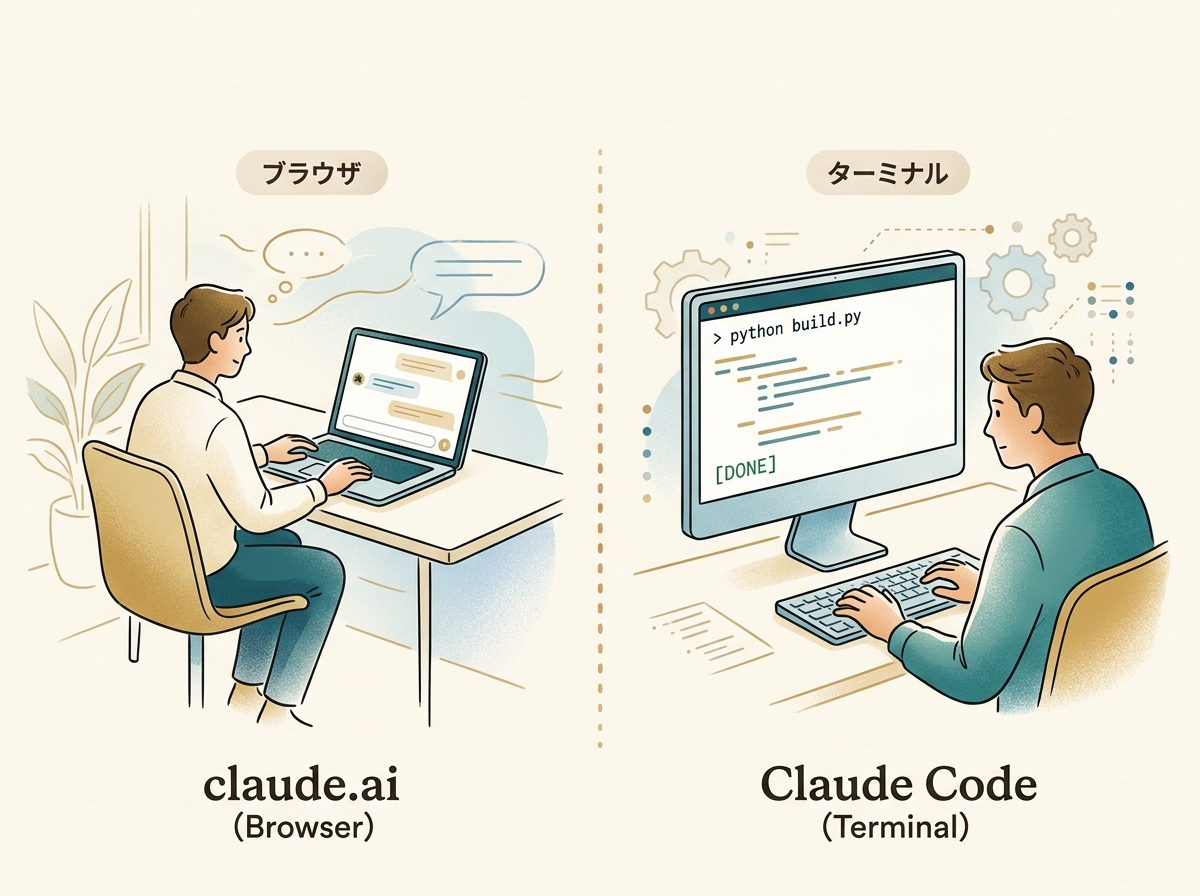
In short, "you can use it in a browser, but it can't do everything the local CLI version can" — that's where things stand. If your repository is on GitHub, the web version is worth trying, but for serious use, the terminal version is where the real action happens.
This article focuses on the terminal version's installation and usage, walking through how non-engineers can get past the initial hurdles.
SECTION 02
Prerequisites Non-Engineers Should Know Before Using Claude Code
Getting started with Claude Code requires a minimum of three things: an Anthropic account, a paid plan subscription, and the willingness to open a terminal.
To clarify the pricing: Claude Code is available starting from the Pro plan ($20/month). A common misconception is that you need the Max plan, but Pro works fine. The Max plan (5x at $100/month, 20x at $200/month) is for those who need higher usage limits.
Pay special attention to the trap of "installation is super easy." For engineers, it's a one-liner. For someone opening a terminal for the first time, the situation is completely different.
The official quickstart now recommends Native Install. Previously, npm-based installation was the standard approach, but a simpler method is now available. Still, for someone who has never used a terminal, every single step becomes a barrier. The definition of "easy" is fundamentally different.
One more important point: you don't need to write code, but you do need the ability to articulate requirements clearly in your own language. "Just make it look nice" won't work. You need the skill to put into words what you want to build and how it should behave.
SECTION 03
Installation Steps to Get Past the First Hurdle
From here, we'll walk through the minimum steps so even someone who has never touched a terminal can follow along.
On Mac, go to "Applications" → "Utilities" → "Terminal" to open the black screen. On Windows, search for "PowerShell" in the Start menu and open it.
Recommended: Native Install (Mac / Linux)
Once the terminal is open, copy and paste the following command and run it.
curl -fsSL https://claude.ai/install.sh | shThat's all it takes to install Claude Code. You don't need to install Node.js or npm beforehand.
Using Homebrew (Mac)
If you already have Homebrew installed, you can also use this:
brew install claude-codeWindows
You can install via WinGet from PowerShell.
winget install AnthropicAI.ClaudeCodeInstalling WSL (Windows Subsystem for Linux) provides more stability, but PowerShell alone is enough to get started.
npm Installation (Alternative)
If you already have a Node.js environment, the traditional npm installation still works.
npm install -g @anthropic-ai/claude-codeHowever, npm requires Node.js to be set up first, so Native Install is recommended for beginners.
First Launch After Installation
After installation, type claude to launch it. On the first launch, you'll be asked to authenticate with your Anthropic account. A browser will open automatically — just log in to claude.ai and grant permission. If you get stuck here, check that your paid plan subscription is active.
Once everything is complete, you'll see Claude's interactive interface in the terminal. Once you've made it this far, all you need to do is give instructions in your own language.
SECTION 04
Small Projects Non-Engineers Should Build First
Once installation is done, your first instruction can be as simple as "create a basic HTML page." Rather than jumping into a complex app, what matters most is experiencing the full loop — "give instructions in plain language → AI writes code → a working thing appears" — as quickly as possible.
For example, just typing "Create a self-introduction page. My name is XX, my hobbies are YY, use a blue-ish background" is enough for Claude Code to generate the files and get them ready to open in a browser. You don't need to understand what's inside the code.

Once you're comfortable, try tackling something slightly more practical:
- A simple calculator tool for work (like a quote form)
- A landing page for event announcements
- A simple note-taking app for daily records
Don't panic when errors occur. Just feed the error message directly to Claude Code, and it will analyze the cause and fix it. Even without the ability to read code, you can handle issues just by saying "I got an error, please fix it." That's the strength of this tool.
SECTION 05
How You Give Instructions to AI Determines the Results
Whether you can master Claude Code depends not on programming knowledge, but on "what you say and how you say it." Vague instructions produce vague results. Conversely, if you communicate requirements specifically, the output will be surprisingly accurate.
Good instructions boil down to three key points:
- State what you're building concretely (not "create a booking form" but "create a booking form with fields for name, email, and preferred date")
- Describe how it should look with a visual image ("simple design, white background with black text," etc.)
- Explain how it should behave as conditions ("display a confirmation screen when the submit button is pressed," etc.)
Personally, I draft complex features in a text editor first, then copy and paste them in. Thinking on the fly while typing into the terminal produces worse results than organizing requirements first and handing them over all at once.
The honest realization since I started using AI tools is that the assumption has shifted from "code is something you write yourself" to "code is something you instruct others to build." This shift is fundamentally the same for non-engineers — training in articulation pays off far more than studying programming.
SECTION 06
Limitations Non-Engineers Will Hit and Honest Expectations
Claude Code isn't all-powerful. Let me be upfront about the limitations where non-engineers are most likely to stumble. Setting the right expectations is the best way to prevent frustration.
First, AI can't make the "what to build" decision for you. Saying "build me an app that sells" won't work — you're the only one who understands product direction and customer needs. AI handles the implementation legwork, but it can't be the strategic brain.
Next, fine-tuning design details is an area where Claude Code struggles. Sensory instructions like "make this margin a bit narrower" or "make this button color feel warmer" often don't produce the results you envision.
Even trickier are environment setup issues and permission errors. In situations like the following, AI's answers alone may not be enough:
- Cases where commands behave differently depending on the OS version
- Cases where firewalls or security software block network connections
- Cases where Mac's "unidentified developer" warning stops the installation
In these situations, pasting the error message directly into Claude Code can sometimes yield a solution, but when fundamental OS settings need to change, you'll have to ask someone knowledgeable or search for the specific fix yourself.
SECTION 07
If You Want a GUI, Cursor Is an Alternative
For those who find the terminal genuinely intimidating, Cursor, an AI-powered editor, is a viable alternative. Install the app, subscribe to the Pro plan ($20/month), and you can generate and edit code without ever thinking about the terminal.
The decision criterion is simple: choose Cursor if you want a visual interface, Claude Code if you're willing to dive into the command line. Both let AI write code for you, but they differ in entry barriers and areas of strength.
I personally use both Cursor and Claude Code depending on the situation. Here's how I split them:
- Research, Q&A tasks, and fine-tuning designs → Cursor is more comfortable
- Understanding large codebases, automated error resolution, and workflows involving command execution → Claude Code is stronger
- Detailed UI/UX crafting → I still find Cursor easier to work with
People seeking a GUI who come to Claude Code and bounce off do so because the tools are fundamentally different in character. Starting with Cursor and migrating to Claude Code when you want more automation is a perfectly valid path.
You don't need to commit to just one — using both depending on the situation is the most rational choice right now. Start with whichever one you can approach without psychological resistance.
SECTION 08
[Author's Experience] How I Built My Own System to Run Claude Code from a Browser
The idea of "using Claude Code from a browser" is something I had myself. And I actually built a system to control multiple Claude Code instances from a browser interface.
I set up Claude Code for each project, specified models and permissions for each, had them report task status, and even attach screenshots upon completion. On top of that, I made it possible to access the Claude Code running on my home PC from my smartphone.
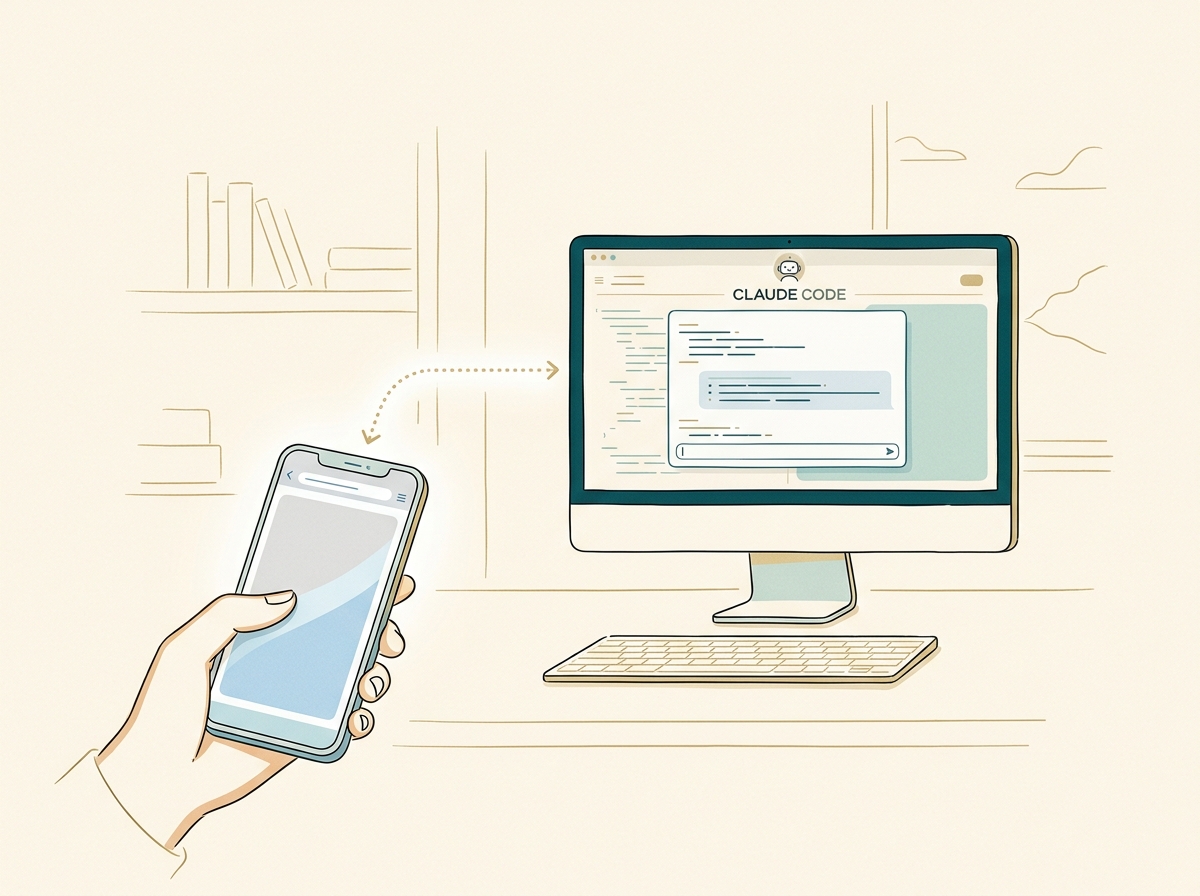
Give instructions from a phone, AI does the development, AI even handles the testing. When I first experienced this, I genuinely thought, "this is fun." I never imagined the day would come when I'd be giving development instructions from my phone while reading a book.
Now that the official web version has launched, there's an option to work entirely in the browser for GitHub repository tasks. However, for working with local files or non-GitHub repositories, you'll still need the terminal version or a custom-built solution like mine.
SECTION 09
Who Should Still Give Claude Code a Try
After reading this far, some of you might feel "this seems too hard for me." However, if you meet the following conditions, it's absolutely worth the challenge:
- You have a clear image of what you want to build in your mind
- You don't give up immediately when errors appear and can ask AI again
- You're willing to "get used to" the terminal's black screen
Conversely, if you're at the stage of "I don't know what I want to build, but I want to try it out," starting with a conversation on claude.ai's chat interface is a more manageable first step. Trying the web version of Claude Code (claude.ai/code) is also a good entry point. Claude Code is a tool for when you've already decided what to build.
Through all my trial and error, what I've come to realize is that the biggest barrier for non-engineers isn't programming knowledge — it's the psychological hurdle of the initial installation. Once you clear that, you can accomplish a surprising amount with nothing but instructions in plain language.
I'm getting more and more inquiries from entrepreneurs and business-side professionals saying "I want to build my own product." The era where you can build things yourself without outsourcing, thanks to AI tools, is undeniably approaching. But it's not magic that produces instant results — there's a new kind of learning required: mastering how to give instructions.
Claude Code is a tool that makes "developers who don't write code" possible. If you have the courage to stand at that doorway, start by opening your terminal and typing that first line.