
SECTION 01
90% of Plan Mode Is Knowing When to Use It
Claude Code's Plan Mode is a feature that makes AI produce a work plan first, instead of jumping straight into code changes. It's a useful feature, but you don't need it for every task. What matters is having clear criteria for when to activate it.
Through trial and error, I've settled on a simple rule that categorizes tasks into three tiers by size. Since adopting this criteria, mistakes where things go too far to revert have noticeably decreased.
- Minor fixes (typo corrections, small changes to a single file) → Implement directly on the current branch
- Single feature additions (a new component, one API endpoint) → Create a branch and implement
- Changes spanning multiple files (refactoring, architecture changes) → Design in Plan Mode first, then implement
In a nutshell, the decision criteria comes down to "whether there's a risk of reaching a point of no return." If you let AI loose on changes with unclear impact, the cost of starting over when the approach drifts becomes significant. Plan Mode is a way to visualize that risk upfront.
Another pattern that's proven effective in practice is using Plan Mode not from the start, but as a fallback when you get stuck. If you're implementing in normal mode and hit a loop, switch to Plan Mode to reorganize the situation. Just replanning often cuts down on wasted attempts and reveals a way forward.
SECTION 02
Launching and Basic Operation of Plan Mode
The way to launch Plan Mode in the CLI is Shift+Tab. Press Shift+Tab on the Claude Code prompt and the mode cycles through default → acceptEdits → plan. That means from the default state, one press takes you to acceptEdits mode, and another press takes you to plan mode. In the VS Code extension and the Desktop/Web apps, you can also switch via the mode selector.
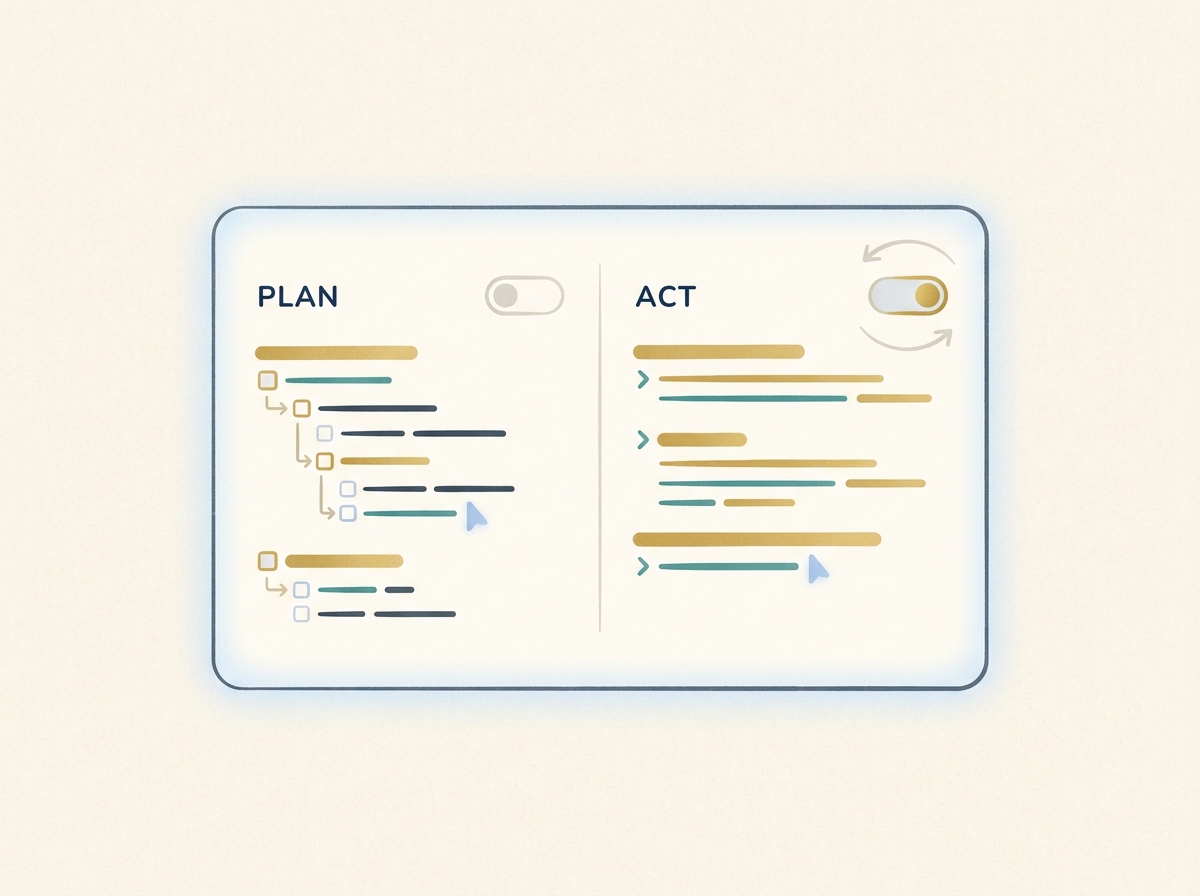
The biggest difference from normal mode (default) is that Plan Mode does not edit source code. However, it does read files and execute shell commands for investigation. When AI reads and analyzes the codebase to create a plan of "what to do in what order," it actively gathers the information it needs.
If you just want a one-off plan without switching modes, you can also use the /plan command. It outputs a plan on the spot without changing modes, making it convenient for quick direction checks.
When a plan is output, it displays a list of files to be changed, planned execution steps, and dependencies between steps in list format. You can approve this plan as-is or provide feedback for revisions. Knowing how to read the plan makes the next review phase much smoother.
SECTION 03
Three Key Points to Check When Reviewing the Plan
Rather than approving Plan Mode's output as-is, building a habit of reviewing it from three perspectives reduces accidents. Having the eye to assess plan quality is fundamental to collaborating safely with AI.
The first point is "whether the list of files to be changed is appropriate." Verify that the files included in the plan match the actual scope of impact. If something is missing here, unexpected inconsistencies will occur during execution. Pay special attention to whether config files and test files have been included.
The second point is "whether the planned commands have side effects." Check for operations that are hard to reverse, such as database migrations, package installations, or build script executions. If the plan includes commands with side effects, consider backups or branch protection around those steps.
The third point is "whether the step order and dependencies are complete." For example, if files that use a type are modified before the type definition itself is changed, errors will occur in the intermediate state. Verify that the dependencies between steps follow a logically correct order.
- List of files to change → Does it match the actual scope of impact?
- Planned commands → Are there side effects or destructive operations?
- Step order → Are dependencies in the correct sequence?
Checking just these three points prevents most typical accidents that happen when you leave everything to AI. As you get more experienced with reviews, you'll start being able to estimate the likelihood of implementation success just by looking at the plan.
SECTION 04
Follow-Up Question Patterns to Deepen Shallow Plans
Plans from Plan Mode aren't always perfect from the start. If you see abstract steps or vague language, it's important to refine them with additional questions. There are several patterns for feedback that improve plan accuracy.
The most effective question is "Are there any other files that would be affected?" AI often recognizes related files beyond what it initially presents, and simply asking improves the plan's coverage. Similarly, asking "What happens if this step fails?" prompts the addition of rollback procedures and error handling considerations.
- "Are there any other files that would be affected?" → Improves plan coverage
- "What happens if this step fails?" → Adds rollback procedures
- "Will existing tests still pass?" → Checks impact on tests
- "Does this change affect performance?" → Checks non-functional requirements
When refining a plan, specifying a concrete angle rather than saying "be more specific" produces more accurate responses. The trick is to pinpoint exactly what concerns you from the review, like "How will callers be affected by changes to this function?"
After a few rounds of feedback when the plan is sufficiently detailed, you "approve" the plan and move to the execution phase. You might feel resistant to spending time at the planning stage, but accuracy here significantly reduces rework in the execution phase.
SECTION 05
Transitioning from Plan to Execution Phase
Once the plan review is complete, you transition to the execution phase. In Claude Code, after approving the plan, you can choose from several approaches: acceptEdits (confirm each edit) / auto (automatic execution) / manual confirmation as you go. There are a few things to verify at this transition point.
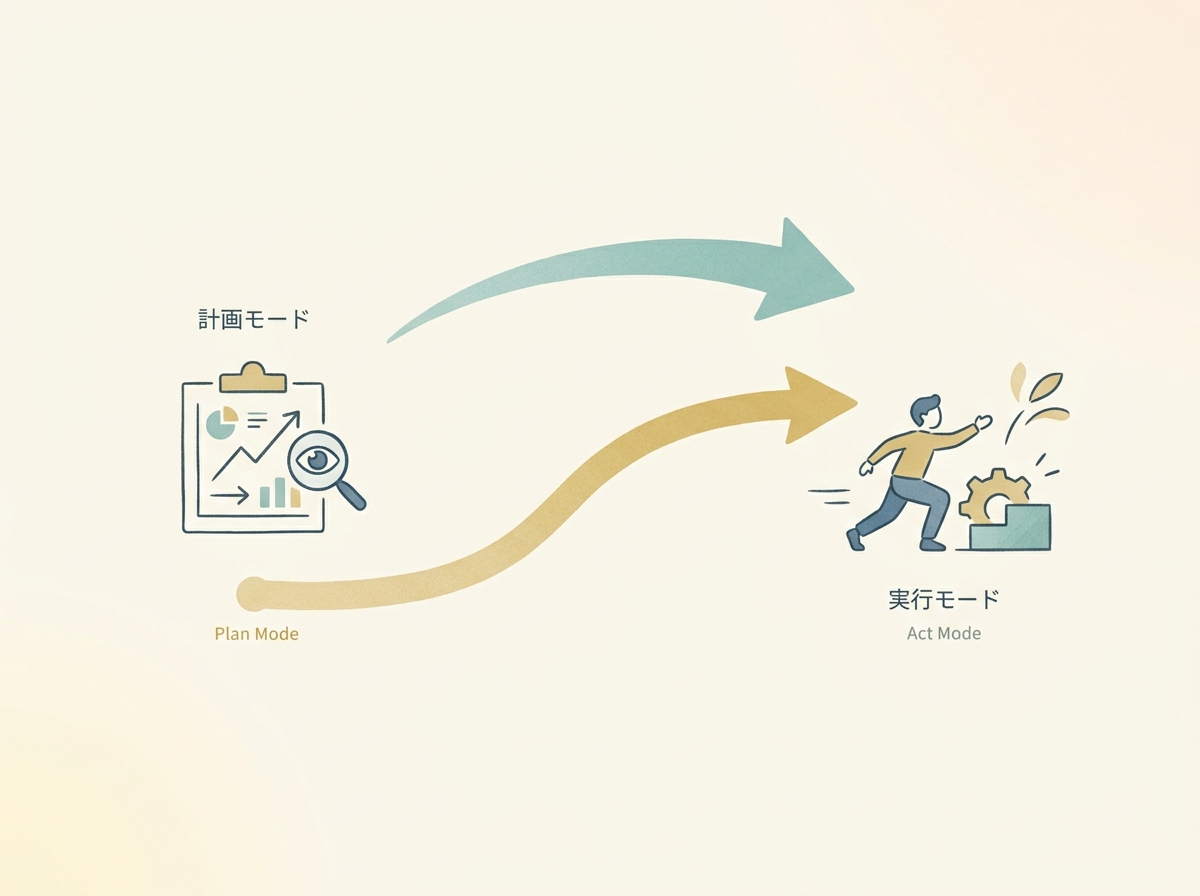
As a pre-execution checklist, verify the following:
- Is the current branch correct? (Are you about to commit directly to main?)
- Are there any uncommitted changes remaining? (Risk of mixing with planned changes)
- Is the number of steps reasonable? (Consider splitting if there are too many)
Once in execution mode, simply instruct "Please implement according to the plan we just made" and AI will modify the code following the plan. Since the agreed-upon plan remains in context, you don't need to provide detailed instructions again.
After execution, perform self-review and verification as a set. Check the diff to confirm AI implemented according to plan. If there are UI or API changes, verifying actual behavior in a browser or terminal is part of the complete workflow.
Having this "plan → review → execute → verify" cycle as a standard pattern lets you follow the same flow regardless of task type. As you get comfortable, you'll find that the plan review essentially determines implementation accuracy.
SECTION 06
In Practice: Integrating Plan Mode into Sub-Agent Architectures
If you're customizing Claude Code skills or sub-agents, a design that automatically launches a Plan Agent based on task size is effective. As one example, I've settled on an architecture that inserts a planning phase with conditional branching like this.
The basic pattern works as follows. For implementation plans with 5 or more tasks, a Plan Agent first breaks down tasks and organizes dependencies, then Coder Agents are launched in parallel for implementation. Since dependencies are clarified during the planning phase, conflicts are less likely even with parallel execution.
- Plan Agent: Task decomposition, dependency organization, execution order decisions
- Coder Agent: Code implementation following the plan (can be launched in parallel)
- Review Agent: Code review after implementation
- Test Agent: Verification and validation
This four-stage architecture is not a Claude Code standard feature but my operational design that stabilized through trial and error. Claude Code has built-in Plan subagent and custom sub-agent capabilities, so adjust the architecture to fit your project.
A critical point here is to build guardrails (rules, specs, constraints) before the planning phase. Without guardrails, execution will drift even if the plan is accurate. Pre-defining coding conventions, test coverage criteria, and prohibited patterns stabilizes agent output quality.
By designing the plan → code → review → test cycle in advance, human intervention points are consolidated into just two: "plan approval" and "final verification." If AI gets stuck or needs human judgment mid-process, designing it to call out to the human also reduces monitoring costs.
This architecture is most effective for large-scale changes. For one-off tasks it just adds overhead, so the key is to combine it with the task size criteria mentioned earlier.
SECTION 07
Model Selection Strategy for Higher-Quality Plans
The value of Plan Mode goes beyond just "producing a plan." By assigning a strong model to the planning phase, you can improve the accuracy of the design itself.
Through experimentation, I've found that when using Opus-class models for planning, step construction stays remarkably accurate even for long workflows. The recommended approach is to use a model with strong reasoning for the planning phase and switch to a cost-efficient model for execution.
- Planning phase: Use a model with strong reasoning (e.g., Opus) to ensure design accuracy
- Execution phase: Use a cost-efficient model (e.g., Sonnet) for code generation
- Review phase: Use a strong reasoning model again to verify alignment with the plan
The benefit of this approach is that planning accuracy reduces mistakes in the execution phase, ultimately lowering total cost. If you run both planning and execution with a cheaper model, gaps in the plan lead to loops during execution, consuming more time and tokens.
Model selection varies by environment and budget, but keeping the mindset of "use a good model for planning, optimize for efficiency in execution" makes it easier to balance quality and cost. Notably, Cline officially supports setting different models for Plan/Act, making this kind of split easier to implement.
SECTION 08
Practical Differences from Cursor and Cline's Planning Features
Beyond Claude Code, there are several AI development tools with planning features, including Cursor's Plan Mode and Cline's Plan/Act mode. Here's what I've learned from using them side by side in practice.
Cursor's strength is "the ease of stepping back." You can preview changes in the GUI and instantly revert if you don't like them. In Cursor's Plan Mode, you enter plan mode with Shift+Tab and can ask questions while building a plan, even converting it to Markdown.
On the other hand, Claude Code's strength is "the depth of its understanding of the entire codebase." Being terminal-based, it can run multiple sessions simultaneously, making it well-suited for working with large repositories.
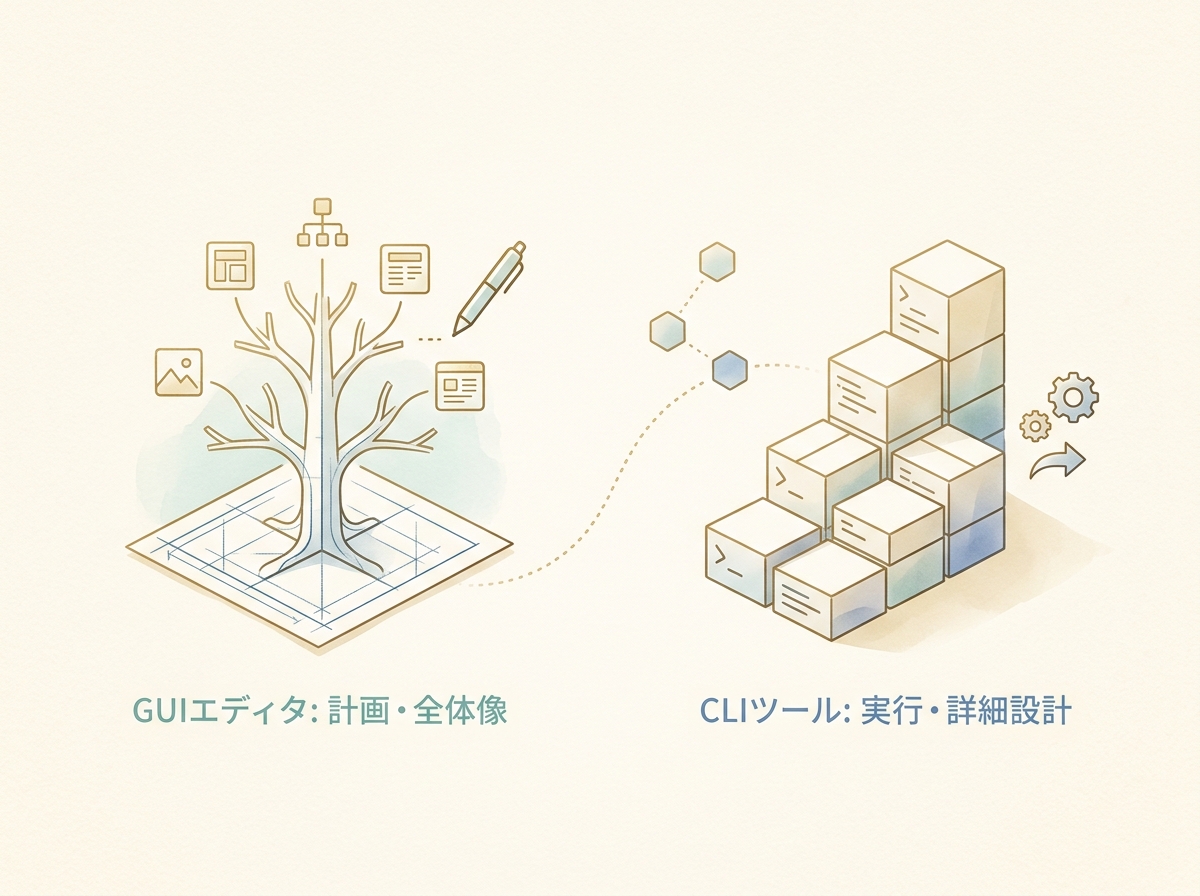
What I've settled on is a sense of "deciding where to do the planning." When I want to proceed carefully, I investigate and plan in Cursor first. Or I use Claude Code's Plan Mode for planning before moving to execution. Rather than picking one exclusively, I use both and decide where to anchor the planning.
Cline also has an official Plan & Act mode that clearly separates planning from execution. In practice, the real difference often comes down to "GUI vs CLI" rather than tool-specific features. GUI offers better plan visibility, while CLI integrates more easily with scripts and CI/CD.
The bottom line is that what matters is not which tool's planning feature is superior, but how you integrate a planning phase into your workflow. Tools are means to an end — the habit of "planning before executing" makes a bigger difference than which tool you use.
SECTION 09
Practical Tips for Getting the Most Out of Plan Mode
Based on everything covered so far, here's a summary of practical tips for leveraging Plan Mode in your daily development. These points are especially impactful to keep in mind during initial adoption.
First, aim for a granularity of "one step = one commit." If plan steps are too large, isolating problems during execution becomes difficult. If they're too granular, creating the plan itself takes too long. A granularity that maps to commit-sized units is practical and easy to review.
- Keep the granularity of one step = one commit
- Have the plan explicitly include "checkpoint" markers
- Add "ask for confirmation before executing" instructions for uncertain steps
- If the plan is too long, split it into phases and proceed incrementally
Next, the technique of embedding "ask for confirmation before executing" instructions in the plan is handy. For example, instructing "Always ask for confirmation before any step that modifies the database" makes AI pause before operations with side effects.
Finally, remember that plans created in Plan Mode become reusable assets. When similar tasks come up again, you can reuse past plans as templates. Rather than discarding plans, saving the ones that worked well as notes further improves planning accuracy next time.
SECTION 10
Summary: The Full Picture of a Design Flow Centered on Plan Mode
Plan Mode isn't just a feature — it's the entry point to an entire design flow that prevents "letting AI run wild and causing accidents." Decide whether to use it based on task size, review the plan, and move to execution only when satisfied. Just having this cycle transforms the quality of your collaboration with AI.
Here's a summary of the flow introduced in this article:
- Decision: Categorize tasks into three tiers by size; use Plan Mode for multi-file changes
- Planning: Have Plan Mode output a design and review it from three perspectives
- Deepening: If the plan is shallow, refine it with follow-up questions
- Execution: After plan approval, proceed with implementation via acceptEdits / auto / manual confirmation
- Verification: Ensure quality through self-review and behavior verification
Building guardrails upfront, assigning a strong reasoning model to the planning phase, and using Plan Mode as a fallback when you get stuck — combining these approaches achieves both planning accuracy and execution stability.
Confirming "what to do" together with AI before taking action — this habit is the simplest and most powerful way to make AI coding safe and efficient. Try Plan Mode on your next multi-file change task.