
SECTION 01
What Changes with Claude Code × MCP
Even on its own, Claude Code handles the essentials — file read/write, Git operations, and parallel processing via sub-agents. As a CLI tool running in your terminal, it can take you from code generation through refactoring without leaving the command line.
Claude Code also supports understanding entire codebases and exploring new projects. What Claude Code can do as a standalone tool today is already substantial.
However, things change when it comes to reading from and writing to external services or specialized integrations. Automating browser-based UI tests, referencing GitHub Issues while creating PRs in one shot — these kinds of deep integrations with external tools become dramatically more powerful with MCP.
This is where MCP (Model Context Protocol) comes in. MCP acts as a bridge between AI and external systems — think of it as adding "eyes" and "hands" to Claude Code. Once you connect the right MCP servers, the AI can autonomously operate external tools.
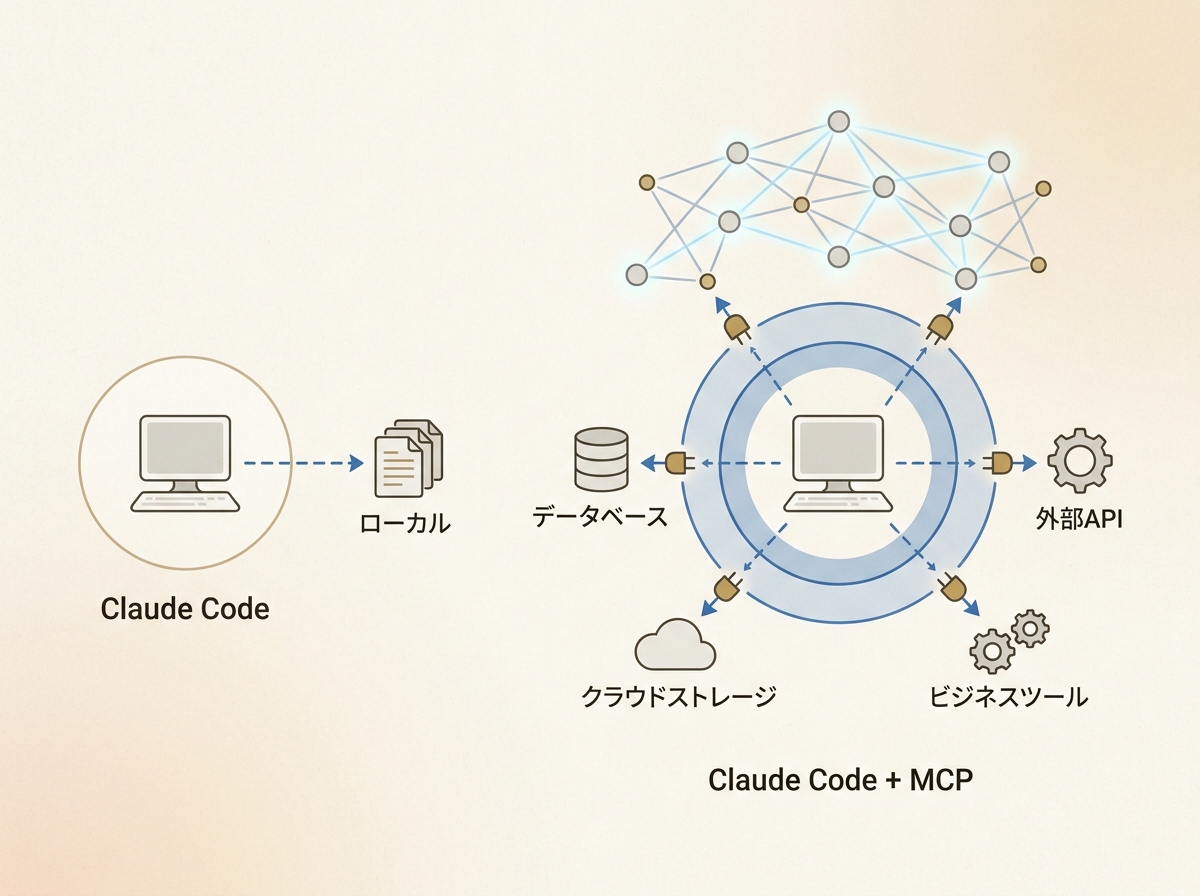
A common source of confusion is the difference between MCP in Claude Desktop and MCP in Claude Code. Claude Desktop is GUI-based and designed for chat-driven interaction. Claude Code, being CLI-based, is better suited for autonomous execution and easier to integrate into scripts and CI/CD pipelines.
In other words, the essence of Claude Code × MCP lies in combining CLI autonomy with the extensibility of external integrations. That said, "connect everything" is not the right approach — more on that later.
SECTION 02
Minimal .mcp.json Configuration and Setup
There are two main ways to add an MCP server. You can use the claude mcp add command for interactive setup, or edit the .mcp.json file directly.
The command-based approach is quick and works well for trying your first MCP server. On the other hand, if you want to share settings across a team or include them in a repository, manually writing .mcp.json at the project root is easier to manage.
The basic structure of the configuration file is shown below. There are three key points to understand in a minimal setup.
- mcpServers: Defines the MCP servers to connect
- command / args: Specifies the server startup command and path
- env: Environment variables such as API keys and auth tokens
Many people get stuck on how to pass environment variables. Auth tokens are either written directly in the env field or referenced from shell environment variables. There's no built-in mechanism to read from .env files, so running export in your shell beforehand is the most reliable approach.
The most common reasons for a setup that doesn't work are incorrect paths, Node.js not being installed, and insufficient permissions. MCP servers launched via npx require Node.js, so make sure your Node environment is set up before proceeding.
When you encounter errors, start by running claude mcp list to check whether the server is recognized. If it's not recognized, the issue is a formatting error in the config file. If it's recognized but not working, the problem lies with the startup command.
SECTION 03
Pattern 1: Automate Browser Testing with Playwright MCP
The first pattern is Playwright MCP. This is an MCP server specialized for browser automation, capable of automating UI tests and screenshot capture.
Even when I publicly stated I wasn't using MCP, Playwright MCP was the one exception. The reason was simple — its purpose as a "browser testing tool" was completely clear. When you know exactly what an MCP does, the decision to install it becomes easy.
Setup is as simple as running the claude mcp add command. Once added, you can give Claude Code instructions like "take a screenshot of this page" or "fill in the form and click the button," and the AI will operate the browser and return the results.
In practice, it's particularly effective in these scenarios.
- Visual verification after UI changes: Instantly confirm via screenshot whether CSS changes look correct
- Form behavior testing: Automatically verify the entire flow of input → submit → result display
- Responsive checks: Open pages at multiple viewport widths to catch layout issues
The key point is that Playwright is an MCP where "what it does" is clear from the start. Because it's confined to browser operations, the risk of unexpected destructive actions is low.
If you're unsure about adopting MCP, starting with Playwright MCP is the lowest-risk entry point. A clear purpose and a limited scope of impact — this is your decision criterion for safely introducing MCP.
SECTION 04
Pattern 2: Enhance Context Management with Serena MCP
The second pattern is Serena MCP. This is an MCP server that assists AI agents in understanding code by intelligently grasping your project's structure.
As you use Claude Code more extensively, how to pass context becomes a challenge. In large repositories, it's difficult to provide the AI with just the right amount of information, and repeatedly saying "look at this file too" is inefficient.
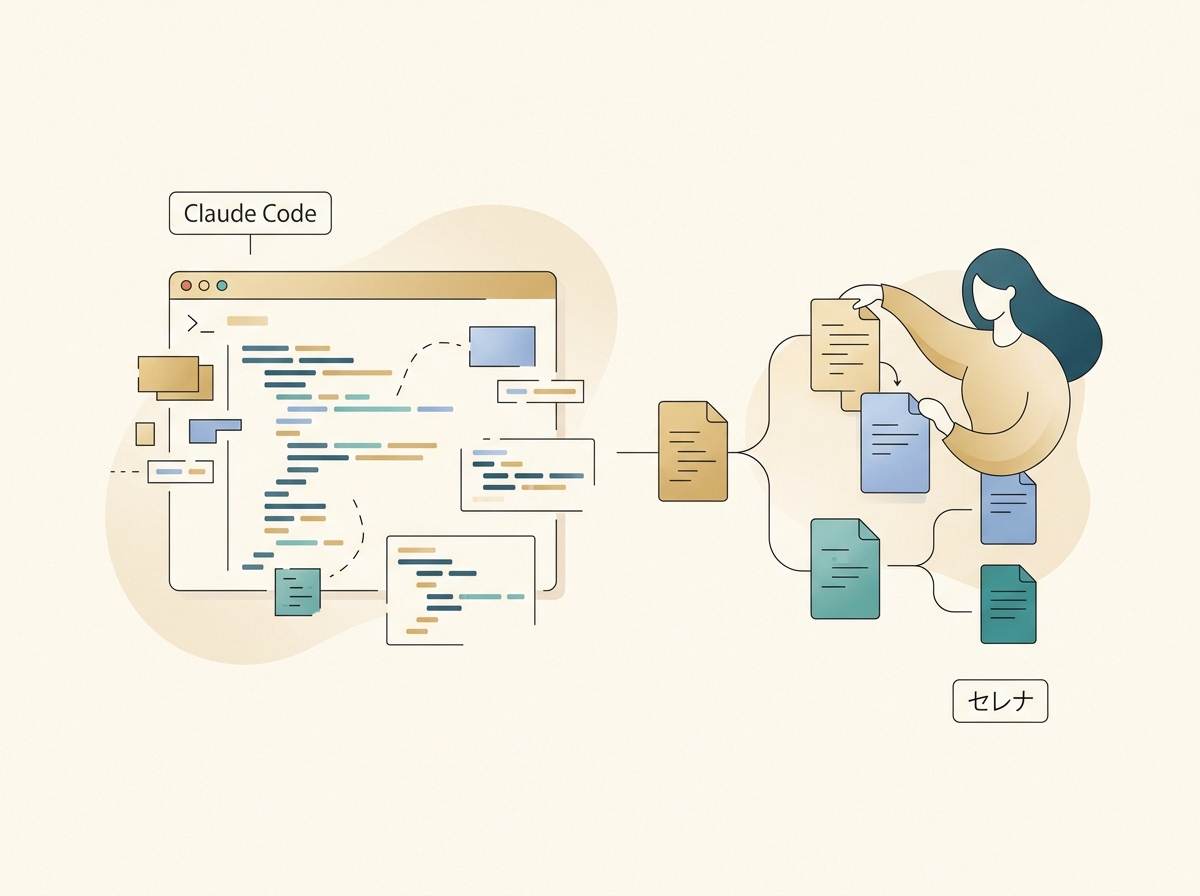
With Serena installed, the AI automatically understands your project's overall structure and comprehends code with awareness of related files and dependencies. Whenever someone around me has complained about context not being passed correctly, I've started recommending Serena.
Installation is done via uvx. For Claude Code, the current recommended approach is to launch with the --context claude-code option and --project-from-cwd.
- Add using the format
claude mcp add serena -- uvx --from git+https://... serena-mcp-server --context claude-code --project-from-cwd - Initialization is handled automatically by Serena, so no manual steps are needed
- After that, just use Claude Code as usual — the context accuracy will noticeably improve
The effect is especially noticeable in repositories with many files or monorepo-structured projects. Since Claude Code can decide for itself "what to look at," the overhead of giving instructions drops significantly.
SECTION 05
Pattern 3: Automate PR and Issue Operations with GitHub MCP
The third pattern is GitHub MCP. It lets you create PRs, reference Issues, summarize diffs, and perform other repository operations directly from Claude Code.
There are several authentication methods. Using a PAT (Personal Access Token) is the simplest — generate a token and pass it as an environment variable in the MCP server config. Depending on your setup, OAuth or GitHub App authentication are also available. In all cases, always scope permissions to the minimum required.
In practice, the following operations deliver the most value.
- Automated PR creation: Summarize diffs after code changes and generate a draft PR
- Issue referencing: Read related Issue content and propose a fix strategy
- Review draft preparation: Organize changes into a format that's easy for reviewers to follow
For setup, you can launch via npx from a registry service, or add via HTTP and complete an auth flow. The setup itself takes just a few minutes.
However, GitHub MCP is an MCP that can hold write permissions. Unlike Playwright, which is confined to browser operations, it can also merge PRs and close Issues.
That's exactly why it's important to limit token permissions to "read + PR creation" and exclude merge permissions. Don't stop at "it's convenient once connected" — clearly define what you allow and what you don't before introducing it.
SECTION 06
Guardrails to Define Before Adding MCP
While I've presented three patterns so far, "just connect it" is the most dangerous approach with MCP. I myself initially stated publicly that I wouldn't use MCP. The reason was that real accidents had occurred — unwanted Git commits, accidentally deleted databases.
What I learned from that experience is the importance of deciding "what to allow and what to prohibit" before installing any MCP. I call this setting up guardrails.
Here are the specific points to design.
- Minimize permissions: For each connection, clearly separate read-only, write-enabled, and delete-prohibited access
- Confirmation flow for operations: Keep a human-in-the-loop step for destructive operations (merges, deletions, deploys)
- Set permission rules with
/permissions: Claude Code provides Allow / Ask / Deny — three levels of permission rules. You can configure "auto-allow," "ask each time," or "always deny" per tool, so apply these to MCP tools as well - Use sandboxing: Claude Code's sandboxing feature and permission rules complement each other. Combining both limits the blast radius of accidental operations
- Don't routinely use
dangerously-skip-permissions: It's handy for initial boilerplate generation, but using it in regular workflows is a recipe for accidents
Pay special attention to MCPs that connect to databases. A situation where you intended only SELECT access but the connection also had DROP privileges is entirely possible. For DB-related operations, add guardrails in the system prompt so that users make explicit decisions.
Through trial and error, I arrived at this step: "First, organize what you can do without MCP." If Claude Code alone can handle file operations, Git operations, and parallel sub-agent processing, there's no need to add an MCP.
Identify only the cases where external connectivity is truly needed, and add only MCPs with a clear purpose. This is the fundamental approach for benefiting from MCP while preventing accidents.
SECTION 07
What You Can Do Without MCP: Claude Code's Standalone Capabilities
Talking about "life without MCP" in an MCP article might seem contradictory, but to properly assess MCP's value, you first need to know what's possible without it.
Claude Code alone can handle code reading and writing, refactoring, test generation, and Git operations — all from the terminal. With sub-agent parallel processing, even complex tasks can be split up and executed efficiently.
To push utilization even further, here are some additional features.
- Explore / Plan sub-agents: Investigate codebases or design multi-file changes before implementation
- Parallel execution of general-purpose sub-agents: Run independent fixes simultaneously
- Custom sub-agents: Define and integrate your own sub-agents tailored to specific purposes like code review or testing
All of these are available as built-in Claude Code features without any MCP. "AI agent-like behavior" can actually be achieved to a surprising degree without MCP.
On top of that, only consider MCP when you need to reach "outside Claude Code" — browser operations, external API integrations, repository management. Following this order prevents unnecessary connections from piling up.
SECTION 08
How to Choose Your First MCP
"I want to try MCP, but I don't know where to start" — I hear this often. Based on my experience, your first MCP should be one whose purpose can be narrowed down to a single use case.
For example, Playwright MCP has a single, well-defined purpose: operating a browser. It's easy to predict what will happen, and the potential blast radius is small.
On the other hand, here's what you should avoid.
- MCPs with overly broad scope: Ones that can read, write, and delete
- MCPs for systems you don't understand: You can't anticipate what might happen
- MCPs added just because "everyone uses it": Whether it fits your development workflow should be the deciding factor
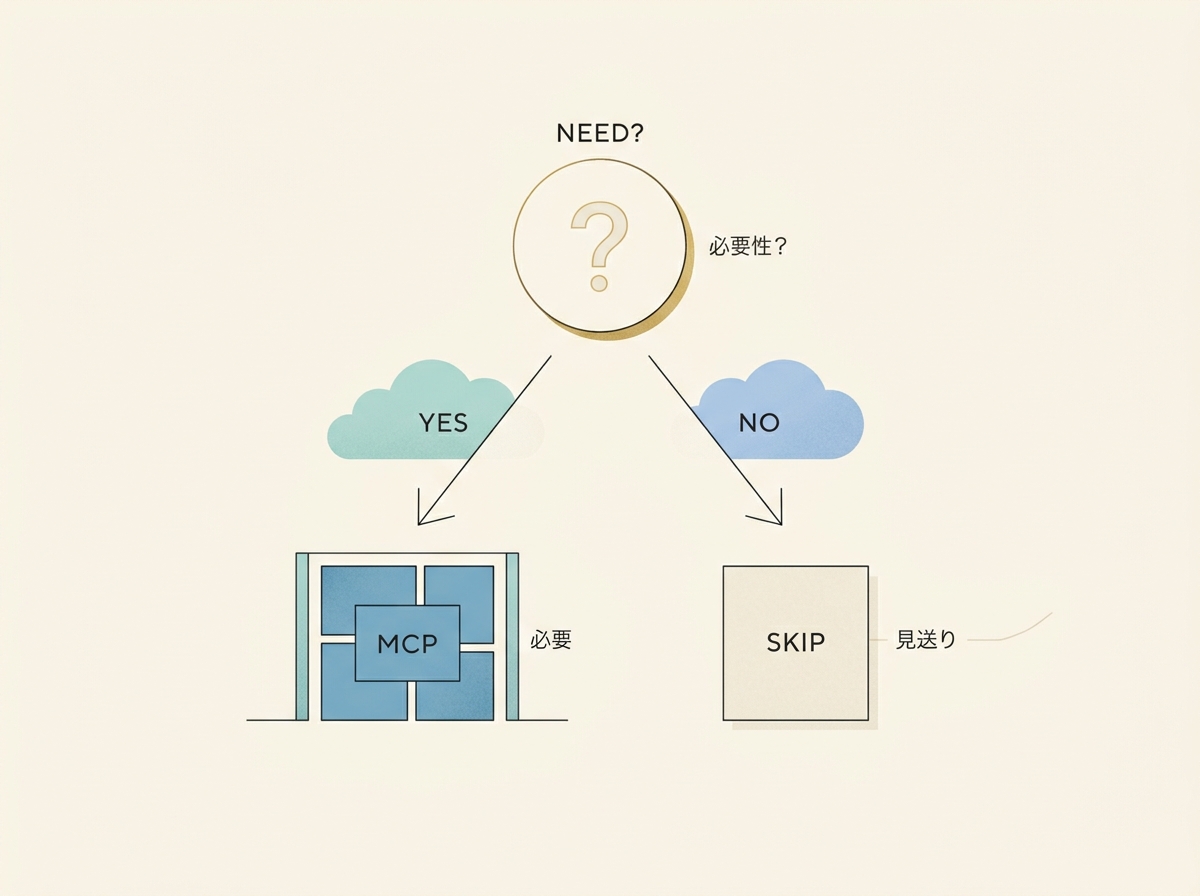
Based on everything I've experienced, MCP is not something you "install everything" — it's something you "select only what you need." Install one, get comfortable operating it, then add the next one you need. This incremental approach ends up being the safest and most effective.
Claude Code's extensibility is appealing, but the judgment of whether to extend is the most important skill for mastering MCP. Define your purpose clearly, and start small.
SECTION 09
Claude Desktop vs. Claude Code MCP: Which Should You Use?
MCP works with both Claude Desktop and Claude Code, but for development automation, Claude Code is overwhelmingly the better fit. The reason comes down to CLI-based autonomous execution.
Claude Desktop operates through a chat interface, making it suited for interactive workflows where a human gives instructions step by step. Claude Code, on the other hand, runs in the terminal, so it can be embedded in scripts and chained with other CLI tools.
Here's a guideline for choosing between them.
- Claude Desktop + MCP: Research, information gathering, document creation — tasks you work through conversationally
- Claude Code + MCP: Code generation, test automation, PR creation — development tasks you want completed autonomously
- Neither: Simple code fixes where MCP isn't needed at all
Notably, Claude Code lets you use the -p option to get JSON output in a pipeline fashion. Integration with CI/CD and batch-style processing are strengths unique to a CLI tool.
That said, permission management for MCP is equally important regardless of which tool you use. GUI doesn't mean safe, and CLI doesn't mean dangerous. What matters is whether you understand what the connected service can do.
SECTION 10
Practical Steps to Start Using MCP Tomorrow
Based on everything covered so far, here's a summary of practical steps for safely introducing MCP. The key to success is a gradual approach, not installing multiple MCPs all at once.
The first thing to do is run through your entire development workflow using Claude Code alone. File operations, Git operations, sub-agent usage — build solid familiarity with these before even considering MCP.
Next, identify the specific points in your workflow where "this is the one thing Claude Code alone can't reach." Whether it's browser verification, GitHub operations, or context management — pinpoint the concrete pain points.
Here's the recommended order of adoption.
- Step 1: Automate browser operations with Playwright MCP (smallest blast radius)
- Step 2: Enhance context management with Serena MCP (primarily read-only, safe)
- Step 3: Automate operations with GitHub MCP (involves write access, design permissions first)
What matters at each step is confirming for yourself "what changed" after installing it. If you don't feel a tangible difference, removing it is also a valid decision. MCP isn't something you install and forget — it should be continuously reviewed.
MCP is a powerful extension mechanism, but connecting without purpose only adds complexity and risk. If you can't articulate "what is this MCP for," it's not time to install it yet. Add only what you need, when you need it — that's how to work with MCP effectively.